
OpenShack · VFO / RIT
Set up your
VFO controller.
Program the OpenShack VFO and RIT assignments into your compatible concentric dual-knob controller, then check every movement with the guided input test.
For the OpenShack concentric dual-knob controller (USB 514C:8850, HID FF00:0001). Other macro controllers may share this USB ID but use a different layout.
How to use
1. Program over USB
- Connect exactly one compatible controller to your laptop with a USB cable and close the manufacturer’s MINI_KEYBOARD application.
- Open OpenShackVFOProgrammer.exe. Review the seven assignments, type YES and select Program controller.
- Wait for successful device readback, then select Verify current input and follow the guided steps.
2. Connect via Bluetooth
The easiest way to use the VFO controller is as a Bluetooth device.
- After programming, unplug the USB cable. If the controller is already switched on, switch it off for five seconds.
- Switch it on using the switch on the underside of the VFO controller. This turns on Bluetooth.
- Open your laptop’s Bluetooth settings and add the device named MINI_KEYBOARD.
3. Enable VFO KNOB in OpenShack
Before using the knob: open Remote Control → Advanced (ADV) and make sure VFO KNOB under External VFO knob is switched on. With capture disabled, OpenShack will not respond—even if programming and all seven verification steps succeeded.
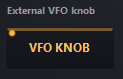
Close the programmer’s verification window before using the knob in OpenShack. The status beside the setting shows whether capture is active and lists any shortcuts that could not be registered.
The fixed assignments
Every shortcut includes Ctrl + Shift.
| Controller action | Shortcut |
|---|---|
| Top knob, counter-clockwise | F5 |
| Top knob, clockwise | F6 |
| Top knob, pressed + counter-clockwise | F1 |
| Top knob, pressed + clockwise | F2 |
| Top button | F3 |
| Lower knob, counter-clockwise | F7 |
| Lower knob, clockwise | F8 |
F4 is unused. The programmer reads all 25 layer-1 slots back and confirms that all seven assignments match.