Advanced
Network Ports
When you use the Remote Station, several of its
integration features open local network ports on your PC so that other programs —
your logger, a Hamlib application, WaveLog, or PSTRotator — can talk to OpenShack.
By default these bind to loopback (127.0.0.1), so they are
reachable only from the same PC and are never exposed to the internet.
You normally never need to think about these. The table is here for the rare cases where a port number clashes with another program, or your firewall/antivirus blocks a local connection. Most ports are adjustable in Remote Station → Settings; a few are fixed.
localhost (the default) to keep them PC-local, or pick one of your PC's
LAN addresses to let another computer on your network connect to them. The
WaveLog Gateway endpoints (54321 / 54322) are the exception —
they are always fixed to loopback.
Host side (the PC at the radio)
On the host, OpenShack connects out to services already running on the same PC (your CAT software, rigctld, or PSTRotator) and to network-connected station devices such as OM Power amplifiers.
| Used for | Protocol | Default port | Adjustable? |
|---|---|---|---|
| CAT proxy → your rig's CAT/TCP server | TCP | 9700 | Yes — Host CAT (TCP) |
| rigctld proxy → a running rigctld | TCP | 4532 | Yes — rigctld host port |
| rigctld auto-launched by OpenShack (its listen port) | TCP | 4532 | Yes — rigctld listen port |
| Antenna rotator → PSTRotator (send commands; one port pair per configured rotator, up to four) | UDP | 12000 | Yes — per-rotator port |
| Antenna rotator ← PSTRotator (azimuth updates) | UDP | 12001 | Follows each rotator's port + 1 |
| OM Power amplifier (built-in LAN port; one connection per configured amplifier, up to four) | TCP | 10001 | Yes — per-amplifier port |
Client side (your remote location)
On the client, OpenShack listens so your logging and digimode programs can connect to it as if the radio were local.
| Used for | Protocol | Default port | Adjustable? |
|---|---|---|---|
| CAT port for your logger (e.g. N1MM+) | TCP | 4573 | Yes — Client CAT (TCP) |
| rigctld port for Hamlib applications | TCP | 4532 | Yes — Client rigctld port |
| TRX Emulator (TS-2000) for contest loggers — only with the TCP transport; the virtual COM pair is recommended | TCP | 4574 | Yes — TRX emulator port |
| WaveLog QSO upload from MSHV / WSJT-X | UDP | 4575 | Yes — WaveLog QSO port |
| WaveLog Gateway — QSY / tune commands | HTTP | 54321 | Fixed |
| WaveLog Gateway — live radio status | WebSocket | 54322 | Fixed |
| Winkey Proxy for logger CW | Virtual COM | — | COM port, not a network port |
Window Positions
OpenShack automatically remembers the position and size of every window you open. When you reopen a window, it appears exactly where you left it. The saved positions are specific to your current monitor setup — if you change monitors (e.g. switch from dual to single screen), OpenShack keeps a separate set of positions for each configuration.
File Location
Window positions are stored in the local data folder in a single JSON file:
You can open this folder by pressing Win+R, pasting
%LocalAppData%\OpenShack\WindowStates and pressing Enter,
or by using the DATA button described in Finding the Local Data Folder.
Resetting Window Positions
If a window opens off-screen, at an unexpected size, or you experience any other layout problem, you can reset all saved positions:
- Close OpenShack completely.
- Navigate to the folder shown above.
- Delete the file
windowstates.json. - Restart OpenShack — all windows will open at their default positions.
Bundled Virtual Audio & COM Ports
When you run the Remote Station as a client, you often want third-party software — a digimode decoder, a contest logger, or a WinKey application — to talk to the remote rig as if it were plugged in locally. The OpenShack setup can install the helper drivers needed for that:
- VB-Audio VB-CABLE — routes audio between OpenShack and digimode programs (WSJT-X, MSHV, FLDigi, …).
- com0com virtual COM port pairs — route COM/serial between OpenShack and software that only speaks COM (CAT, TS-2000 emulator, WinKey).
VB-Audio VB-CABLE
If selected during setup, Windows shows two audio devices named CABLE Input and CABLE Output (VB-Audio Virtual Cable). Windows may need a reboot before these devices appear reliably.
- Receive (remote rig → decoder): the digimode program records from CABLE Output.
- Transmit (encoder → remote rig): the digimode program plays its tones to CABLE Input.
The names look reversed because they describe the cable endpoints: one program plays audio into CABLE Input, and another program records the same audio from CABLE Output. Select the matching devices in OpenShack's audio settings depending on whether you want receive audio, transmit audio, or both.
com0com Virtual COM Port Pairs
If selected during setup, OpenShack creates three com0com port pairs. Each pair has an OpenShack side and an external-software side. In the normal preferred mapping, the odd-numbered port is used in OpenShack and the following even-numbered port is used in your external program.
| Use | OpenShack side | External software side |
|---|---|---|
| TRX Emulator / TSEMU | COM21 | COM22 (logger / external software) |
| Winkey Proxy / Emulator | COM23 | COM24 (logger Winkey) |
| CAT bridge | COM25 | COM26 (optional CAT client) |
If one of the preferred port numbers was already occupied, Windows assigns a free fallback port. The actual mapping is saved by setup and is the authority for your PC:
%LocalAppData%\OpenShack\Setup\virtual-com-ports.txt%LocalAppData%\OpenShack\Setup\setup-notes.txt
%LocalAppData%\OpenShack\Setup\com0com. Normal users do not need to run
them after setup. They are provided for inspection, support, and advanced manual changes;
applying changes there may remove and recreate virtual COM devices.
3rd Party Software Config
This section collects concrete setup examples for programs that work alongside OpenShack. The examples assume the remote station is running as a client and OpenShack provides the local interfaces that the external program connects to: audio through VB-CABLE, CAT through a virtual COM port or TCP listener, and completed QSOs through the WaveLog UDP listener.
127.0.0.1, so MSHV talks only to programs
running on the same Windows PC. The actual remote radio link still runs through
OpenShack's Remote Station connection.
MSHV
MSHV can be used with OpenShack for digimode operation. In a typical setup, OpenShack supplies the remote receiver audio to MSHV through a virtual audio cable, exposes CAT/PTT through the client-side TRX/CAT interface, and receives logged QSOs from MSHV for forwarding to WaveLog.
- Route the audio through a virtual audio cable. In MSHV, set the receive Input Devices to the cable's recording side (CABLE Output in the screenshot) and the transmit Output Devices to the cable's playback side (CABLE Input in the screenshot).
-
In OpenShack, enable the client-side WaveLog QSO UDP listener.
The default listen address is
127.0.0.1and the default UDP port is4575. -
In MSHV, open the network / ADIF broadcast settings, enable
Enable Logged QSO ADIF, set Server to
127.0.0.1, and set Port to4575. -
Configure MSHV rig control to use the local CAT path provided by OpenShack.
With the bundled com0com preferred mapping, select the external-software side of the
TRX Emulator / TSEMU pair in MSHV: normally
COM22. OpenShack uses the matching DL2CC side, normallyCOM21. If setup assigned fallback ports, use the values fromvirtual-com-ports.txt. If you use a TCP listener instead, use the matching localhost address and port from your OpenShack client settings.
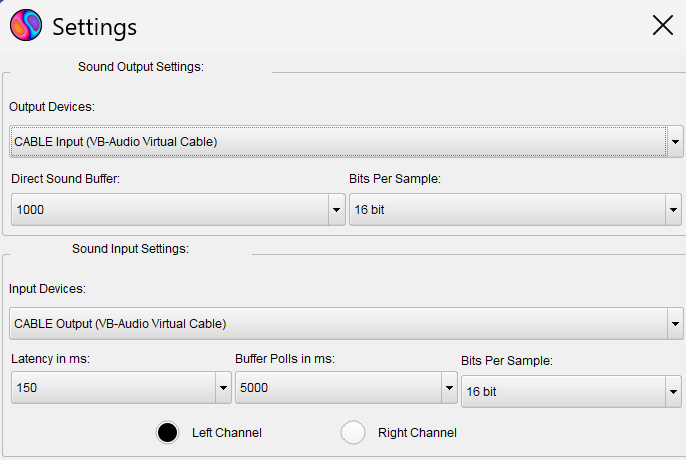
MSHV Sound Settings — the decoder listens to CABLE Output, while MSHV sends its transmit tones to CABLE Input
The device names look reversed at first, but they are Windows audio endpoint names: programs play audio into CABLE Input, and other programs record that same audio from CABLE Output. Match the corresponding audio devices in OpenShack so received audio reaches MSHV and MSHV's transmit tones go back to the remote station audio input. For pure receive/decoding tests, the MSHV input side is enough; transmitting also needs the output side plus working PTT/CAT.

MSHV UDP Broadcast Settings — Enable Logged QSO ADIF sends completed QSOs as ADIF to OpenShack on
127.0.0.1:4575
The green status line confirms that MSHV can reach the local UDP destination. In this example, Enable Logged QSO and Enable Decoded Text are not needed for WaveLog upload through OpenShack; the important option is Enable Logged QSO ADIF.
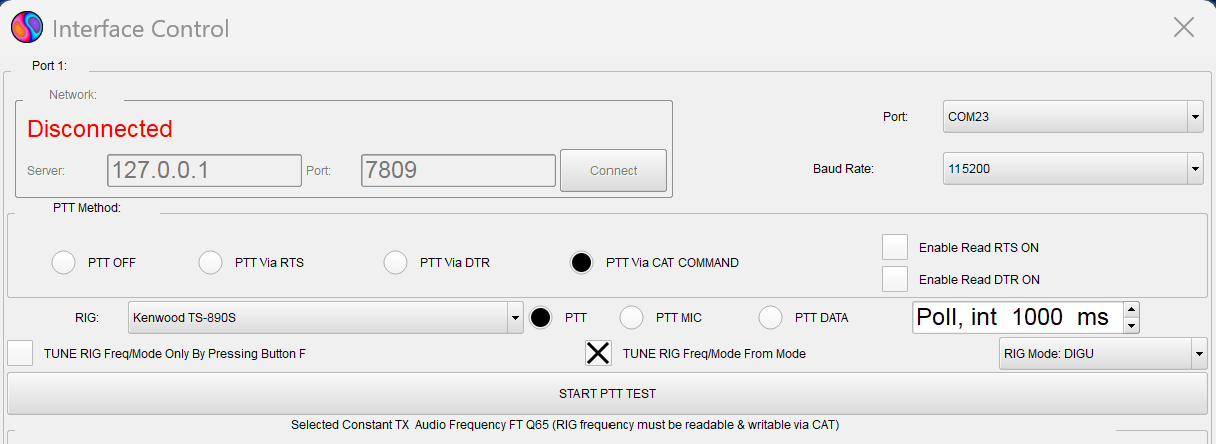
MSHV Interface Control — CAT/PTT runs through the selected local interface; use the external-software side from the setup notes, normally COM22 for the TRX Emulator pair
The Port field on the right is the CAT interface MSHV opens. With the bundled com0com pair, MSHV opens the external side and OpenShack opens the DL2CC side. PTT Via CAT COMMAND tells MSHV to key the transmitter over CAT instead of using RTS/DTR line toggling. The network box on the left is not required in this COM-port example, so it may remain disconnected. The screenshot shows where to set the port; use the actual port numbers from your setup notes if they differ.
Updating OpenShack
OpenShack checks for a newer version each time it starts. When one is available, a blue notification bar appears at the bottom of the main dashboard reading "New version X.Y.Z available (you have A.B.C)", with a Download link and a Details… link that opens the release notes. The bar is only a reminder — nothing is downloaded or changed until you decide to update. You can hide it with the × on the right; it returns at the next start while the update is still pending.
- Close all OpenShack windows. Quit the app on this PC so no files are in use while the installer runs.
- Download the new setup from https://openshack.com/download — either by clicking Download on the update bar, or by opening the page in your browser.
- Do not uninstall the old version. Just run the downloaded setup. It installs over the existing version in place and carries all your settings forward.
- Start OpenShack. The dashboard now shows the new version number and the update bar is gone.
The OpenShack Box has its own firmware, updated separately from the app. OpenShack shows a matching orange "Device firmware update available" bar on the dashboard when your Box needs newer firmware — see Firmware Updates below.
Callsign List (MASTER.SCP)
RufzXP, the PileUp Trainer, the other trainers and games draw
their callsigns from the Super Check Partial
list (MASTER.SCP). It's the same list of about
50,000 active contest calls that N1MM+ and other loggers use.
Every OpenShack version includes a recent copy, and it only
changes when you update OpenShack, so the calls you get in the
trainers and competitions stay the same within one version.
To recognise calls, the Audio Decoder and the
CW Pileup Decoder use the full Super Check Partial
database (SCP.DB, about 69,000 calls) instead.
MASTER.SCP only keeps the 50,000 calls heard most
often in contests, so a well-known station that rarely
contests (for example ON4MA) is in the full database but not in
the list. It's the database the lookup on supercheckpartial.com
searches. OpenShack includes it, and you can fetch the newest
one from
supercheckpartial.com,
which publishes a new release twice a week.
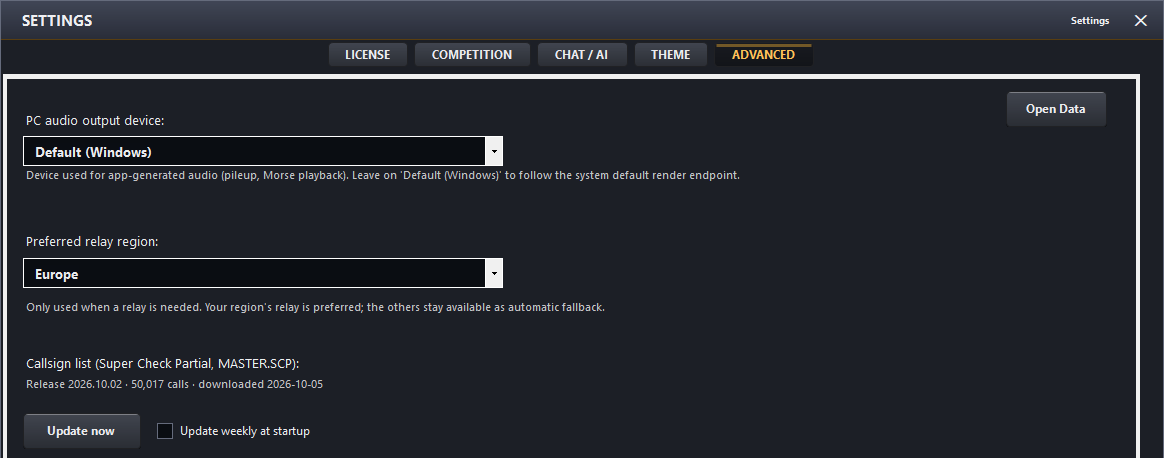
Settings → Advanced — the callsign list in use and its update controls
| Control | Description |
|---|---|
| Callsign list line | Shows the list in use: the number of calls in the full database (which colours known calls), its release date, whether it came with the app or was downloaded (and when), and the size of MASTER.SCP, the smaller list of active calls the trainers and competitions draw their calls from. |
| Update now | Downloads the current full database right away (about 3 MB). The line below shows the result, for example Updated: 69,054 calls or Up to date. MASTER.SCP isn't downloaded; it comes with OpenShack updates. |
| Update weekly at startup | Off by default. When it's on, OpenShack fetches the full database once a week while the start-up window checks your hardware and license. On a slow connection the start-up window shows the download progress. Press Esc to skip the update; the start-up continues with the database you already have. Takes effect after OK or Apply. |
The Audio Decoder has the same update button in its settings
rows — see Remote
Station → Audio Decoder. The downloaded database is kept in the
SCP folder of your local data folder
(Open Data on this tab).
Firmware Updates
The OpenShack Box firmware can be updated directly from your browser using the web flasher at openshack.com/webflash/. Connect the Box via USB, open the link, select your device and flash.
You don't have to check for firmware updates yourself. Whenever your Box is connected, OpenShack compares its firmware against the current version at startup. If newer firmware is available, an orange "Device firmware update available" bar appears at the bottom of the main dashboard, with an Update firmware link that opens the web flasher for you. Only flash when this bar tells you to — there is no need to update otherwise.
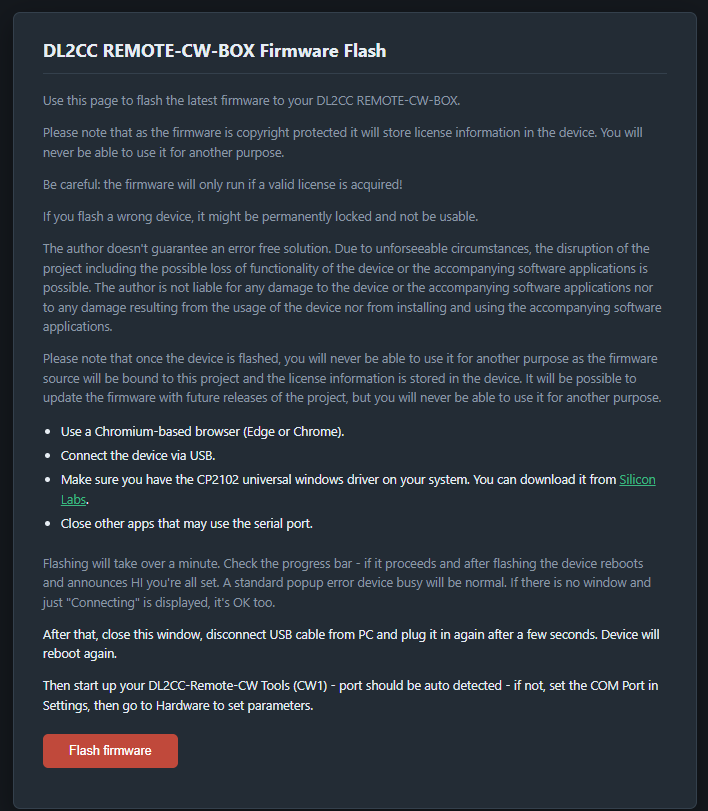
Firmware web flasher at openshack.com/webflash/ — update the Box firmware directly from your browser
Uninstallation
To remove OpenShack, uninstall the application and — for a complete cleanup — delete its local data folder. The optional drivers are removed separately (see below); uninstalling OpenShack does not remove them.
Remove the application
- Close OpenShack.
- Open Windows Settings → Apps → Installed apps.
- Find OpenShack, click ⋯ → Uninstall, and follow the prompts.
Remove the local data folder (optional)
Uninstalling the app leaves your settings, remembered remote stations, window layouts, logs, and setup markers in the local data folder. To remove those as well, delete:
%LOCALAPPDATA%\OpenShackPaste the path into the Windows Explorer address bar (or press
Win+R, type it and press Enter), then delete the
OpenShack folder. See
Finding the Local Data Folder for details.
Remove the optional drivers
These drivers are optional and may not be installed on your PC. You remove them separately — not by uninstalling OpenShack. See also Bundled Virtual Audio & COM Ports above.
Silicon Labs CP210x / CP2102 driver
Use Windows Device Manager:
- Open Device Manager.
- Find the Silicon Labs CP210x device under Ports (COM & LPT) or Universal Serial Bus controllers.
- Right-click → Uninstall device.
- If Windows offers Delete the driver software for this device, select it only if the driver is not needed for other CP210x devices.
VB-Audio VB-CABLE
Use the VB-Audio setup tool again:
- Run
VBCABLE_Setup_x64.exeas Administrator. - Choose the uninstall / remove option.
- Reboot Windows afterwards.
VB-Audio's own readme notes that a reboot is required after uninstall as well as after install.
com0com (virtual COM ports)
Use Windows Apps, or the com0com Start-menu uninstaller:
- Open Windows Settings → Apps → Installed apps.
- Remove Null-modem emulator (com0com) (or run the com0com Uninstall shortcut from the Start menu).
COM21/22, COM23/24, COM25/26, or any fallback
pairs) disappear. The %LOCALAPPDATA%\OpenShack\Setup\VirtualComPorts.json
file may remain as a stale diagnostic file, but the installer's detection checks whether
the ports still exist, so a later reinstall re-creates them as needed.
uninstall.exe /S.
This is intended for administrators / support, not normal use.