Morse Chat
Morse Chat lets you exchange CW over the internet with other operators. Actual keying timing is transmitted, not just text. If nobody is online, you can also practice with the built-in AI chat partner.
Live Morse Chat
OpenShack's live chat system transmits your real keying timing data to other operators. On their side, the timing is played back as CW audio. Each participant has a distinct tone frequency so you can tell who is sending.
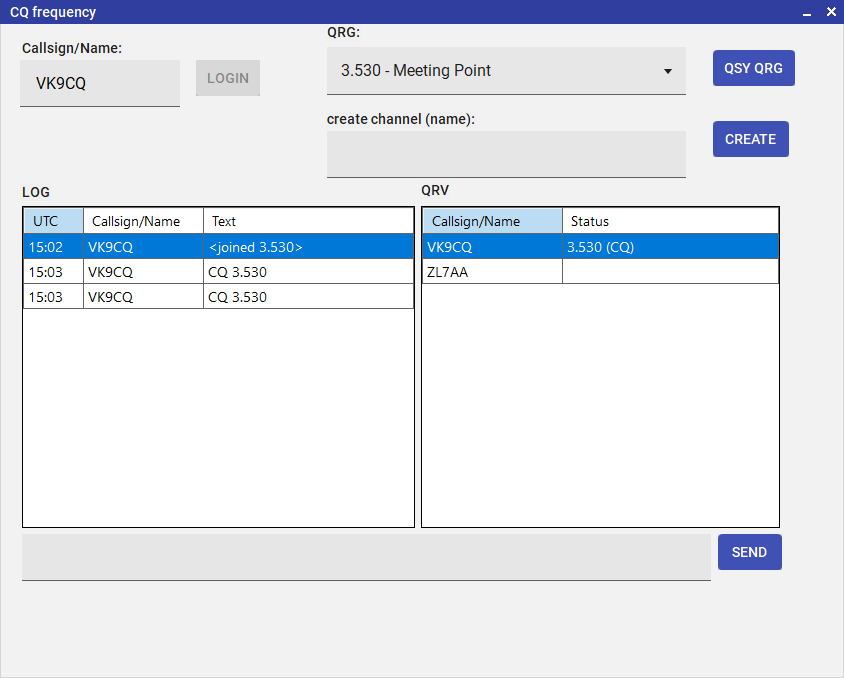
Morse Chat Lobby — see who is online and join or create rooms
The Lobby
The desktop V2 layout groups your callsign, room selection, lobby traffic and online operators into separate panels. Use Connect, then Join or Create & join. The room window keeps traffic and participants beside each other, with a compact message field and grouped audio controls below. Share room opens a dialog with the browser chat link.
When you open Chat → Morse Chat, you enter the Lobby first. The lobby shows all online operators with their callsigns, current status, and which room they are in. From here you can:
- See who is online right now.
- Browse available rooms and join one.
- Create your own room (you become the admin).
- Send a Private QSO request to another operator for a 1-on-1 session on a private channel.
- Exchange text in the lobby channel.
In Windows, right-click an operator in the lobby list and choose Request private QSO (or Accept QSO for a pending invitation). Double-clicking uses the same private-QSO flow. If the operator is in a public room, Join channel <ChannelName> takes you to that room. This entry is not shown for private rooms or an unconfirmed location.
The sample rooms appear by name in alphabetical order:
Beginner, Fast Channel (QRQ),
Meeting Point, Ragchew and
Slow Channel (QRS). These names are also the actual room identities.
Shared links and QR codes use the complete name, including spaces, punctuation and Unicode.
Uppercase and lowercase letters lead to the same room, including in the link path and parameter name.
For example, https://cw.openshack.com/cwchat/?channel=AGCW%20Kurs%20A
and HTTPS://CW.OPENSHACK.COM/CWCHAT/?CHANNEL=AGCW%20KURS%20A open the same room.
The displayed name keeps its spelling. New room names may contain up to 128 characters.
Share a new link for a preset room; numeric names are no longer aliases for these rooms.
Custom public rooms stay in the lobby list while someone is in them, even after the creator leaves. They disappear when the last participant leaves; after a connection loss this can take until the server detects the departure. Sample rooms remain listed when empty. Private QSO rooms are not listed. Remaining participants do not become admin when the creator leaves. Newly created custom rooms remember their keys even when empty. Reopening the link does not make the first arrival admin. The room creator keeps admin access on the same saved profile; another browser or device needs the admin key. Callsigns alone are not proof of ownership.
Optional room keys for classes
Create a custom room and open Room settings. The admin sees a five-character Admin key and a separate Student key. Save the admin key and share it only with teachers. Students who arrive before the teacher do not acquire admin rights.
- Access with key only is off by default. Anyone can join an open room as before.
- Switch it on to require either key when joining. Give the student key to the class; the admin key also unlocks the teacher controls.
- Already in the room? Enter the admin key in Room settings and click Unlock admin controls.
- New key replaces that key and invalidates its other saved permissions. Keep the replacement. Repeated wrong keys cause increasing cooldowns.
The shared link never includes a key. Protected rooms require the updated browser or app; an older app cannot take part in their conversation. Saved access lasts up to 30 days; after clearing app/browser data, use the key again. The keys remain valid until replaced. Preset rooms and the separate Private QSO switch keep their existing behavior.
Inside a Room
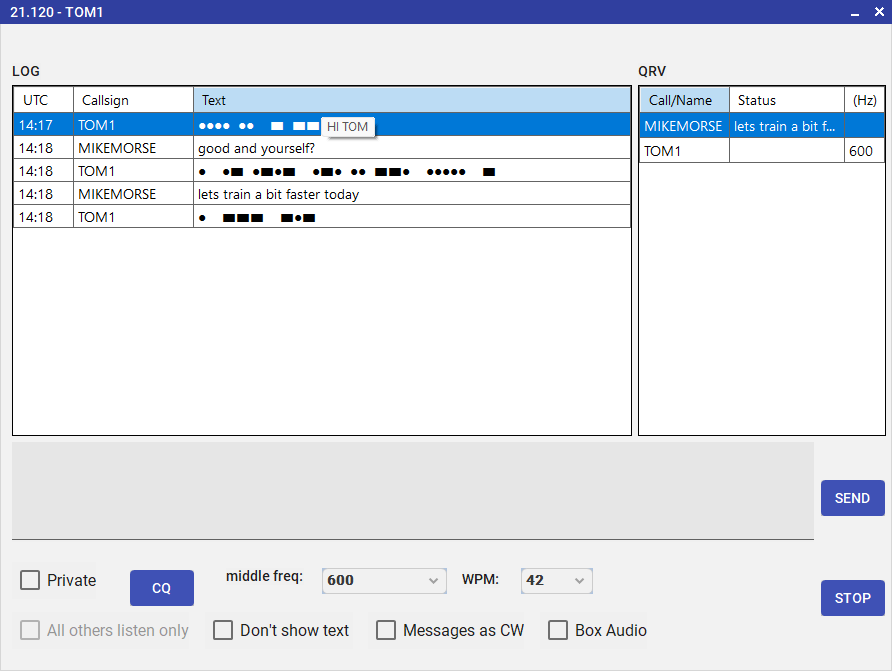
Chat Room — real CW timing exchange with other operators
Inside a chat room you can see all participants and exchange CW:
- Send via an OpenShack Box — key on your paddle. The timing is sent to all room participants in real time.
- Receive live keying — other operators' key timings play through PC/browser audio at their original speed, each on a distinct tone.
- Decoded text — received CW is also shown as text.
Keyer and Message Audio
- Web keyer — the shared Screen Keyer handles touch and keyboard input. A fresh setup defaults to Straight; saved source, mode and key assignments are restored. Use the keyer's own key assignment controls instead of a separate chat keyboard key.
- Hardware — the browser/mobile selector includes OpenShack Box USB, network and Bluetooth (BLE), plus WinKey, VBand and Morserino input. Availability depends on the browser/device. BLE reconnection is explicit. Backgrounding releases the web keyer; returning restores supported remembered connections without replaying old audio. Windows uses USB or TCP. The compact OpenShack Box controls show a steady green connection dot and the confirmed Box WPM, with minus/plus buttons.
- Messages as CW enables audio for received typed messages. A received message has a text row and a dots/dashes row; these are two views of one message, with one audio playback at your selected playback WPM.
- Box audio selects the connected OpenShack Box for typed messages, received keyed CW and local CQ sidetone. It is on by default; unchecked or without a connected Box, audio uses the PC/browser. Box tones are limited to 550–750 Hz; frequencies inside that range stay unchanged. The Box plays senders in turn. Local keying takes priority. Playback restores the Box's original sidetone settings when it ends.
- CQ sends one room message and monitors it once locally after a successful send, even when received-message audio is off. The network echo adds no second playback, and your typed draft is preserved. Stop cancels typed and keyed playback, including queued Box audio.
Visual CW in the Chat Log
While operators key, their transmission is drawn live in the chat log as dots and dashes on one line. Each mark is drawn as long as it was keyed, measured against the sender's own dot length. Paddle, keyer and typed messages therefore show every dash exactly three dots long. A straight key shows the operator's real rhythm: long dashes, short dots and uneven pauses stay visible. Each operator gets their own row that grows in place as more elements arrive, so multiple stations can transmit at the same time without their visuals interleaving. Both the sender and the receiver see the same line, so you can verify what your keying looks like as it goes out.
- Input speed — electronic keyer input uses the confirmed sender speed, shared as an optional hint with each element. Straight-key input follows the marks and pauses of the current character, including uneven dots or a change of pace from the previous character. Its symbols and decoded preview can be corrected as more timing arrives. PLAYBACK WPM in the desktop room controls typed-message playback, not live keying speed.
- Spacing — pauses are drawn as they were keyed too: short inside a character, longer
between characters, longest between words. A very long mark or pause is shortened to nine dots so the
row stays readable. Long rows wrap between characters, never inside one. Copying a row gives the
text form
●/▬. - Hover for decoded text — point at a CW row to reveal its available decoded text immediately, without a hover delay. Desktop shows a tooltip; web shows the text inline on hover or keyboard focus, and phone users can tap the row. The decode updates as characters complete, even while the pointer stays still.
- End of transmission — about 500–750 ms after keying stops, the last element and its decoded character appear as a preview. A delayed timing fragment can still correct it. A measured key-up pause of about two seconds starts a fresh row with the next mark; network delivery delays alone leave the current row open.
- Mixed with text messages — when an operator sends a typed message, their current CW row is finalized and the text message appears below it, keeping the chronology of the conversation intact.
- Privacy — the No Message Output admin control hides both the visible
glyphs (replaced with
<...>) and the decoded tooltip for non-self users, so listeners must copy by ear only.
Room Admin Controls
If you created the channel, you are its admin. Admin controls let you manage the room:
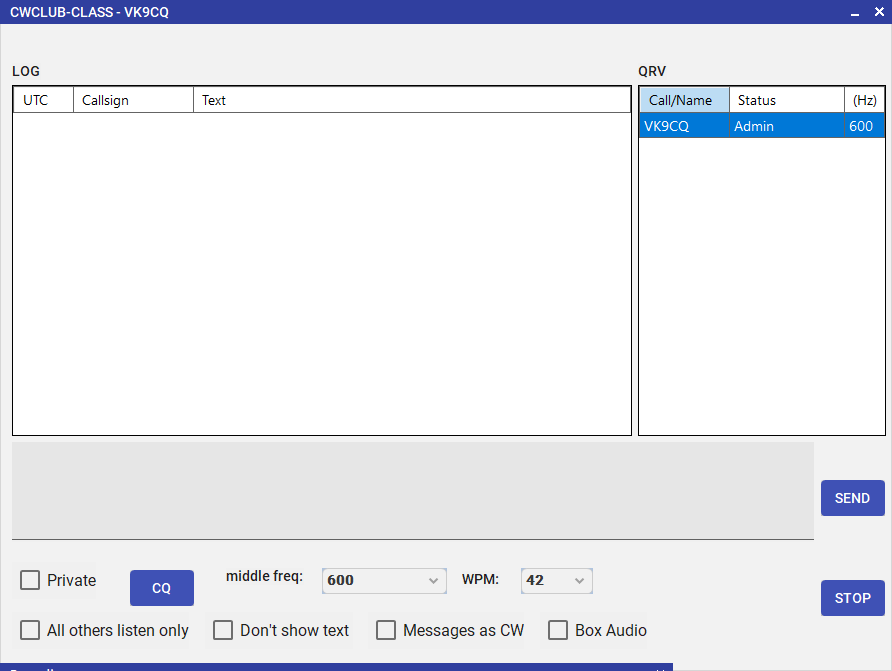
Room admin controls — listen-only mode, CW relay, and text suppression
| Control | Effect |
|---|---|
| Listen-Only Mode | Participants can hear but cannot transmit CW. Useful for training sessions or demonstrations. |
| Play Messages as CW | Typed text messages in the room are automatically converted to CW audio and played for all. |
| No Message Output | Suppresses the decoded text display — operators must copy by ear only. Good for practice. |
| WPM / Farnsworth | While All others listen only is active, the admin sets typed-message character speed and optional Farnsworth effective WPM for participants. For example, 20 / 10 keeps characters at 20 WPM and adds letter/word spacing for 10 effective WPM. Off uses normal spacing. |
The room remembers these classroom settings. New arrivals receive them automatically; participants' speed controls are locked until listen-only ends, then their personal speeds return. Each typed message keeps the speed selected when the admin sent it, including pasted text and Box playback. Live keyed CW keeps its original timing. Don't show text hides received dots/dashes and decoded answers, including hover/tap reveals. Use current clients for classroom speed control; older app versions do not apply it.
QSY
As room admin, you can invite all participants to QSY to a different room. All members receive the invitation and can follow with a single click.
Chat rules, blocks and reports
Before your first connection, accept the short chat rules. In the current Windows build, right-click in the lobby or room and choose Chat rules & safety.... The dialog offers English and German rules, the support address and your blocked callsigns. In the web client and mobile apps, these controls are in Settings.
Right-click another participant or one of their messages to block or report them. A block removes their existing chat rows and stops their messages, CW playback and private QSO invitations on this PC. The participant list remains available for unblocking. Blocks are local and based on callsigns/names, which are not verified identities. They are not server bans.
A report opens a preview with the selected message, callsigns, room, UTC and an optional reason. Open email draft opens your mail app with support@openshack.com as recipient. You review and send it yourself. Copy report is available if no mail app opens. Reports are never sent automatically.
A small exact-word filter checks typed messages. If your text is rejected, it stays in the input field for editing. Received matches show a placeholder and are not played as CW. Paddle and straight-key CW are not checked by this word filter and receive no added delay.
AI Morse Chat
Practice conversational CW at any time, even without another operator. OpenShack's AI Chat uses OpenAI GPT to respond to what you send. You key your message on the paddle and the AI replies in CW audio.
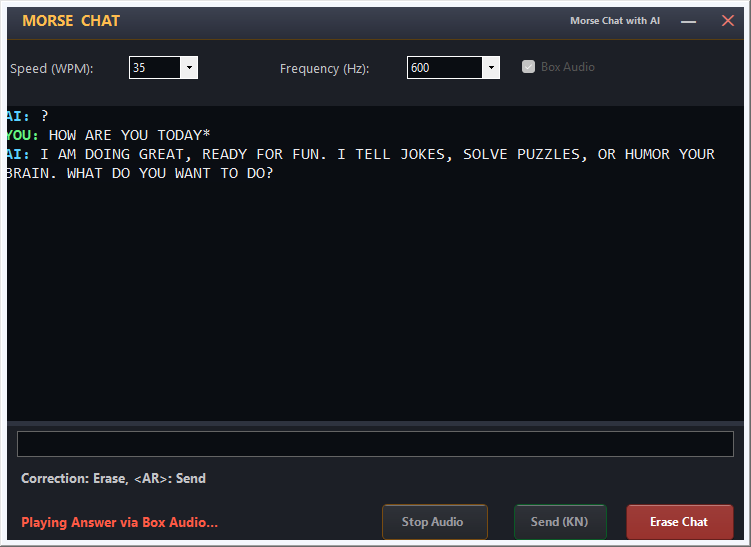
AI Morse Chat — conversational CW practice with OpenAI GPT
How It Works
- Open Chat → AI Chat from the dashboard.
- Set your preferred WPM and sidetone frequency.
- Key your message on the OpenShack Box paddle. OpenShack decodes what you send.
- End your message with VVV=. OpenShack relays the decoded text to the AI only when it receives this sequence.
- The AI response is played back as CW audio at your chosen speed.
Hidden Answers — Copy by Ear
To make this real practice, the AI's reply is hidden in the chat log — the line only shows AI: ... while the answer plays as CW. Copy it by ear first, then press the Show AI button at the bottom to check yourself. That button changes to Hide AI and reveals every answer in the log; press it again to cover them back up. OpenShack remembers whether you left the answers shown or hidden the next time you open AI Chat. Error messages are always shown in full.
Settings
| Setting | Description |
|---|---|
| WPM | Speed at which AI responses are played. |
| Frequency (Hz) | Tone frequency for the AI's CW playback. |
| API Key | Your own OpenAI API key for unlimited use. A built-in demo allowance is included for trying out the feature. Set in Settings → Settings. |
Morse Chat Web Client
After joining, Live room shows the conversation and keyer. Switch to Lobby & rooms without leaving your room. Room settings groups playback and room controls; on a phone, tap Participants to expand the roster. Failed text sends keep your draft for retry. Leaving a room or hiding the app cancels old audio; return to the foreground for live CW and use Tap to enable audio if prompted.
A Private QSO uses a separate room, but does not enforce access restrictions. Do not treat it as a confidential channel.
The Morse Chat Web Client is a browser-based version of the live chat system. It runs in a modern browser without OpenShack desktop installation. Operators can join the same lobby and rooms as OpenShack desktop users, hear CW playback directly in the browser, send text, key CW with the spacebar or on-screen key, and — on a desktop browser — key with a real straight key or paddle through a connected OpenShack Box.
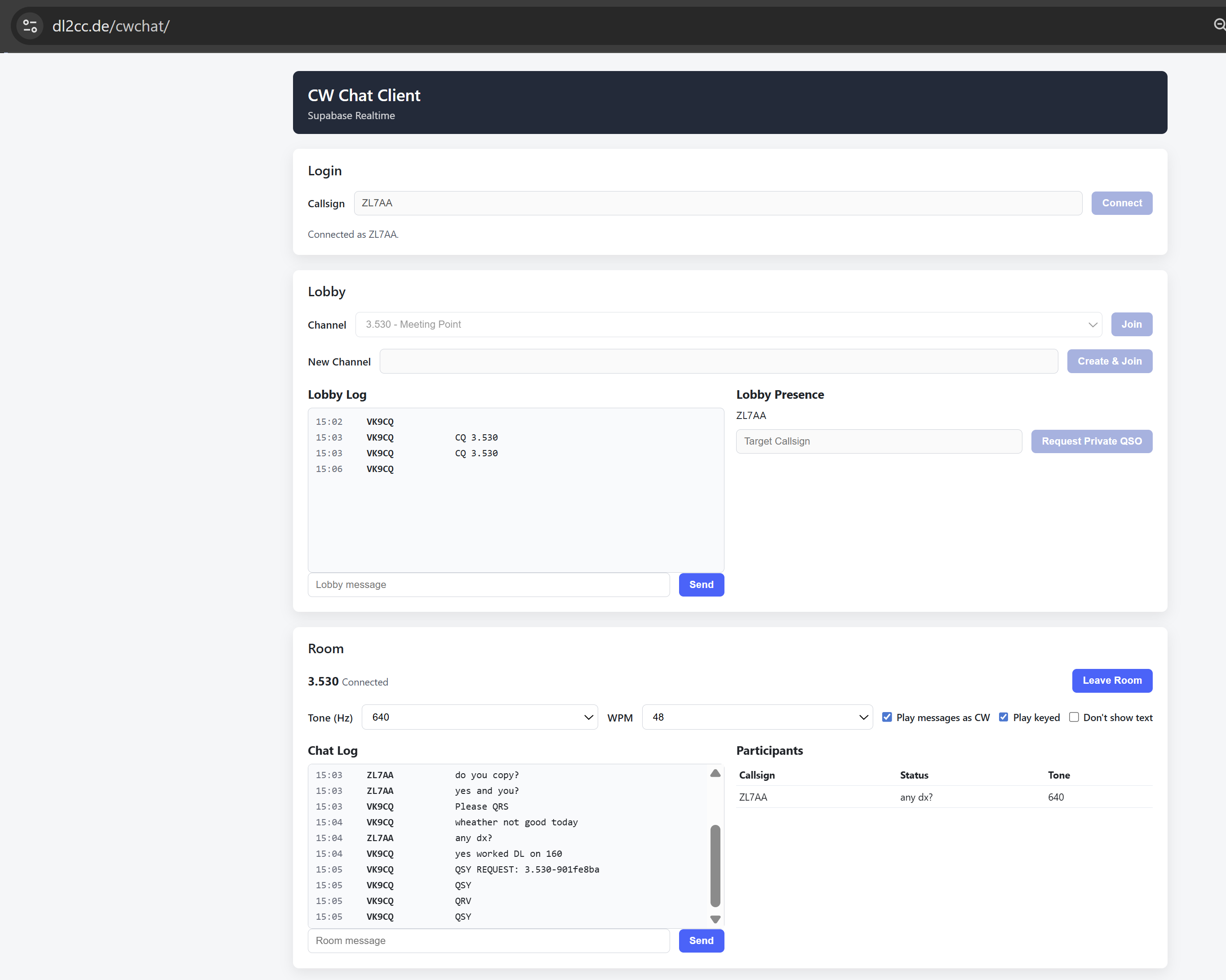
Morse Chat Web Client — browser-based lobby, room, and CW playback
Features
- Lobby — see online operators, browse and join channels, create a new channel, or request a private QSO.
- CW playback — received keying timing is played back as CW audio in the browser using the Web Audio API.
- Per-participant tones — each station is assigned a distinct sidetone frequency, matching the same scheme used in the desktop client.
- Text messages — send and receive room messages; optionally have messages played back as CW.
- Play messages as CW — typed text messages from any participant can be rendered as CW audio in the browser.
- WPM and tone selection — choose your preferred playback speed and sidetone frequency per session.
- Keying from the browser — send CW with the spacebar or the on-screen key on any device, including phones and tablets.
- OpenShack Box keying — on a desktop browser you can also key with a real straight key or paddle through a connected OpenShack Box, alongside the spacebar.
- Box reconnect — once the box has been used, it is reconnected automatically the next time you open the client, with no prompt.
Sending CW with the OpenShack Box
On a desktop browser the web client can take keying directly from a OpenShack Box over USB. Connect the box, press Connect box key, and pick the serial port once. The box is placed in training mode so keying the chat never keys a connected transmitter, and the box's own sidetone is used for your sending. The spacebar / on-screen key stays available at the same time.