Morse Trainer
A CW training course based on the Koch method. Characters are introduced one at a time at full speed. You move on only when the current set is secure enough.
The Koch Method
The Koch method teaches CW at full character speed from the start. You begin with two characters and add a new one only when your accuracy on the current set exceeds the target threshold.
- Characters are introduced in a proven standard Koch order by default. You can also set your own order, see Lesson Order Examples.
- The trainer focuses extra attention on the characters you find most difficult.
- Session length is configurable — set how many items per session before a checkpoint.
- Your progress is saved automatically in a profile so you can continue later.
How the Character Selection Logic Works
The trainer does not build the full session in advance. Instead, each next character is selected during the session based on your current performance.
- Characters you struggle with are selected more often.
- Well-learned characters are still mixed in regularly to avoid forgetting.
- The newest unlocked character is kept at a minimum share in the session so it does not disappear too early.
- The weighting updates continuously after each scored answer.
Starting the Trainer
- From the dashboard, click Learn → Morse Trainer.
- Select or create a profile (your saved progress). Multiple learner profiles are supported.
- Open Settings to configure WPM, Farnsworth speed, and items per session.
- Click Start Session.
Input Modes
Keyboard
Type the character you heard on your keyboard. Great for pure listening practice with no hardware required.
OpenShack Box Paddle
Key the answer on your physical paddle. The decoder checks your CW, so you practice listening and sending together.
Box Keyer Speed
With an OpenShack Box connected, the compact hardware row shows a steady green dot, OpenShack Box, and its current WPM with −/+ buttons. The dot indicates the connection. The displayed speed changes when the Box confirms the setting; changes made with its physical speed buttons are reflected too. These controls are available in Learn, Advanced, MorseChat, Balloon Burst, CW Summit and RufzXP TX. Windows connects over USB or TCP; browser/mobile connection choices depend on the device.
Box keyer WPM sets the electronic keyer's element speed. Your prompt/playback speed remains separate. In straight-key mode the row still shows the Box's configured WPM, while decoding follows your actual hand timing.
Audio Output
PC Audio
CW tones are generated and played directly through your PC speakers or headphones. No hardware needed.
Box Audio
Prompts are sent to the OpenShack Box and heard through its hardware sidetone output.
Session Settings
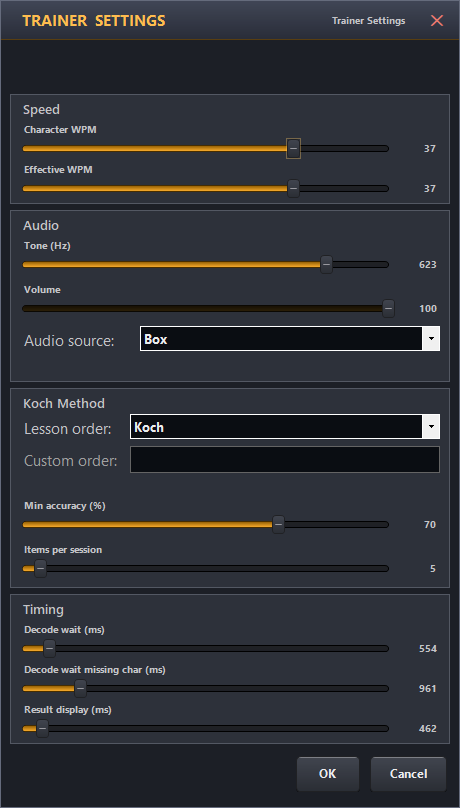
Trainer Settings Window
| Setting | Description |
|---|---|
| WPM (character speed) | Speed at which individual characters are sent. This is your real operating speed — do not set it lower than your target. |
| Farnsworth Speed | Effective word speed (spacing). Must be ≤ WPM. Lower values = more thinking time between characters. |
| Items Per Session | How many characters/words are played before the session ends and progress is saved. |
| Min accuracy (%) | The accuracy you need before the trainer moves you to the next lesson. Default 90%. See Moving to the Next Lesson. |
| Lesson order | Koch uses the built-in OpenShack order. Custom uses the characters from Custom order. See Lesson Order Examples. |
| Custom order | The characters in the order you want to learn them. Lesson 1 starts with the first two characters, and each further character adds one lesson. Spaces, unknown symbols and repeated characters are ignored. The field starts with the standard Koch order, so you can edit it instead of typing it from scratch. |
| Audio Source | PC speakers or OpenShack Box. When PC is selected, the actual Windows output device is configured globally in Settings → Advanced → PC audio output device. |
| Input Mode | Keyboard or OpenShack Box paddle |
| Relaxed decoding | Only matters when you answer on the paddle or key. On (default): your keying is read generously — uneven dots and dashes, a dash that comes out a little short or a brief hesitation inside a character still count, as long as you send the right dots and dashes in the right order. Off: marks are judged against your learned speed without help from the expected answer. With a straight key, a recognized dash also lets spacing follow your current slower pace, so an older faster speed alone does not split M into T T. A pause of 1½ reference dot lengths still ends the character. Long hesitations and characters sent without enough separation can still produce a wrong answer. Paddle timing keeps its known keyer speed. This applies to Trainer and Advanced Trainer on desktop, web and mobile; the standalone TX Decoder is unchanged. |
| Show keying timing | On (default): review your keying timing after the session. Off hides the timing review and summary. See Keying feedback. The Advanced Trainer and the web trainers have the same switch. |
Lesson Order Examples
Both orders below start with K and M. Copy one into Custom order and set Lesson order to Custom to use it.
| Order | Characters | Lessons |
|---|---|---|
| OpenShack Koch (default) | KMRSUAPTLOWI.NJEF0YV,G5/Q9ZH38B?427C1D6X= | 40 |
| LCWO.net Koch course | KMURESNAPTLWI.JZ=FOY,VG5/Q92H38B?47C1D60X | 40 |
Both orders teach the same 41 characters, including the = sign
(BT, the break). The OpenShack order adds it in the last lesson, and the
LCWO.net order brings it in at lesson 16 and teaches E and N earlier.
If you change the order part-way through the course, you keep your lesson
number, but that lesson then covers the characters of the new order.
Checking Your Copy
After every answer the trainer shows you exactly which characters you got right and which you did not — and when the session ends it collects everything into one report. The Morse Trainer and the Advanced Trainer both work this way, on the PC and in the browser versions.
After each answer
What was sent appears next to the input box: green where you copied it correctly, red where you did not. Underneath a wrong character you see what you actually entered, so a classic mix-up like V copied as U jumps straight out at you.
| What you see | What it means |
|---|---|
| Green character, nothing below it | Copied correctly. |
| Red character with your character underlined below | You copied something else — that is what you sent instead. |
| Red character with a dot and a dotted line below | You missed this one completely. |
| Crossed-out character | You added a character that was never sent. |
| Detailed timing | Review it after the session — see Keying feedback. |
A completely correct answer stays quiet — you just get one green line, no second row. Nothing is coloured while you are still typing or keying: the answer is only revealed once your entry is finished, so you never get a hint mid-copy.
Every finished item is also added to the row of small cards underneath. Scroll back through them at any time to see how the session has been going.
Keying feedback
When you answer on the paddle or key, the trainer also shows how evenly you sent. In the drawing, the first dot of each character defines 1.0. If the character has no dots, one third of its first dash defines 1.0. Every other mark and pause uses that same scale. The ideal ratios are: dot 1, dash 3, pause inside a character 1, between characters 3, between words 7.
During practice, you see the normal correct/wrong result. Detailed timing waits until the session ends, including when you press Stop Session. In Keying review, swipe the word/group card or use its left/right arrows to change items. Use Previous and Next below the drawing, or swipe the drawing, to browse characters within that item. Left/right arrow keys work on the focused card or drawing. Every completed word/group and every recorded character is kept in order, including clean keying and repeated letters. The counter and character position identify each occurrence. An item without recorded keying says so.
| Part of the strip | What it shows |
|---|---|
| The character, then grey letters | The target, followed by a different reading if the timing suggests one, using the same scale as the drawing. For example K, then N T when the pause before the last dash was too long. |
| uneven | The answer was accepted during practice, but this character's timing suggests a different reading. |
| Ideal (green) | The character at your speed. |
| Yours (grey or green) | What you sent, to the same scale. The whole character turns green when its pattern is correct and every mark and internal pause is within 10% of the ideal, with no timing warning. A dot or dash that turns the character into something else is amber. A pause that does is an amber dashed box with its length below, for example “1.8”. A very long pause is drawn shorter, with a break mark. |
| Amber text instead of the badge | Two characters ran together, for example “K and M run together: pause 1.3 dots (should be 3).” |
Point at any part of the strip for a short explanation. On a phone, tap it: the text appears below the strip. Every recorded dot, dash and pause has its length printed underneath. Internal pauses turn green with a matching character; other normal pauses have grey outlines and timing warnings remain amber. A single E or T stays grey: one mark alone cannot demonstrate a timing ratio. Tap or hover to see the actual milliseconds and the reference dot duration. This scale compares elements within one character; a lone E is always 1.0. The reading, warnings and final timing totals use this same scale. They do not predict what switching Relaxed decoding off would have done: live decoding also uses the previously learned dot/dash distinction and adapts straight-key spacing to recognized current marks. The review does not change accepted answers or scores. A timeout does not provide a measured trailing pause, so none is drawn.
The Keying section in the final report adds up the whole session.
| Row | What it shows |
|---|---|
| Dots and dashes | Your average dash against your average dot. Should be 1 : 3. |
| Pauses inside characters | Should be 1 dot. |
| Pauses between characters | Should be 3 dots. Advanced Trainer only. |
| Pauses between words | Should be 7 dots. Advanced Trainer only. |
| Speed | Your speed, from your dot length. |
| uneven | How many accepted characters suggest another reading at their own speed. The denominator counts accepted keyed characters, not all characters in the session. |
Show keying timing controls the final timing review and summary. Browsing the review is silent; use a copy-log replay button when you want to hear a group again.

Keying review — the third K in KKK: K → N T, with a long pause before the last dash
The session report
When the last item of a session is done, the summary panel opens with the full picture:
| Part of the report | What it tells you |
|---|---|
| Top row of figures | Character accuracy (how many of the sent characters you actually got, not just whole answers), items correct, your real copy speed for the session, and your longest run of correct answers. |
| Copy log | Every item that went wrong, sent above and copied below. Switch to All to see the correct ones too. The ▶ button next to a row plays that group again at session speed, so you can listen to it while looking at what you made of it. |
| Problem characters | Your weakest characters first, each with its accuracy, how often it came up, and what you most often copied instead. |
| Top confusions | The pairs you keep swapping, with both Morse patterns underneath and the differing element marked — usually one dot too many or too few. |
| Keying | Only after a keyed session: the numbers of the Keying timing panel, your most frequent faults, and the characters most often correct but uneven with their usual fault, for example “K, 3×: long pause before the last dash.” |
| Drill button | Starts a focused round with a session-balanced mix of weak characters and other allowed characters. A drill is practice only: it never advances your Koch lesson. |
In Beginner practice, the trainer tracks character distribution during the session and corrects unlucky random runs. Weak and newly learned characters still receive extra practice. In a Beginner Drill, half the selections after keyer calibration are weak characters and half are other characters from the current lesson, when both sets are available. The mix carries across prompts. Occasional doubles remain possible; the sequence is not fixed alternation. Small lessons keep their chosen group length.
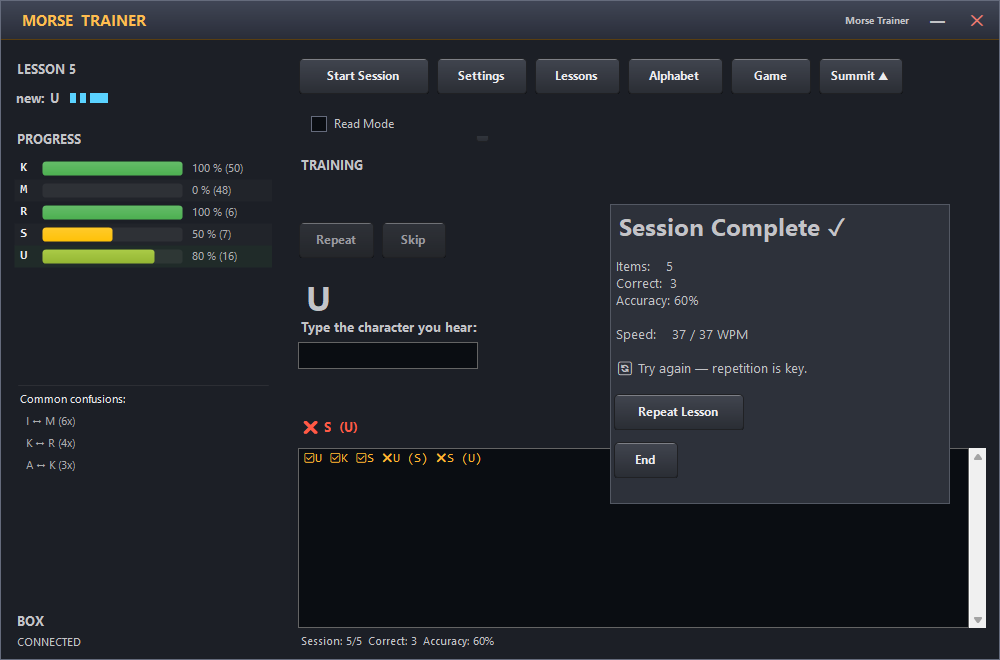
Morse Trainer — the report after a drill: what was sent (top) against what was copied (below), the weakest characters, and a button to drill them again
Moving to the Next Lesson
The trainer moves you on to the next character in two ways:
- Automatically: once every character of your lesson has come up at least 10 times and you copy each of them at your Min accuracy, the next character is added straight away, even in the middle of a session. The trainer shows Level up! with the new character.
- After a good session: when a session of at least 10 items reaches your Min accuracy, the report offers Next Lesson. Repeat Lesson starts another session at the same lesson, and End just closes the report.
If you choose Repeat Lesson or End, the offer is kept for later: the next time you open the trainer, a Ready for Lesson … card brings it back. The offer is withdrawn when a later session at the same lesson falls below your Min accuracy, and when you reset the character statistics under Lessons.
Profiles & Progress
Each learner has their own profile that stores:
- Current Koch level (which characters have been unlocked)
- Per-character accuracy history
- Session completion count
- Item history for intelligent re-testing of weak characters
Profiles are saved as JSON files in the application data folder and are automatically loaded on startup. Click Lessons in the trainer to see your current level, unlock specific lessons manually, or reset progress.
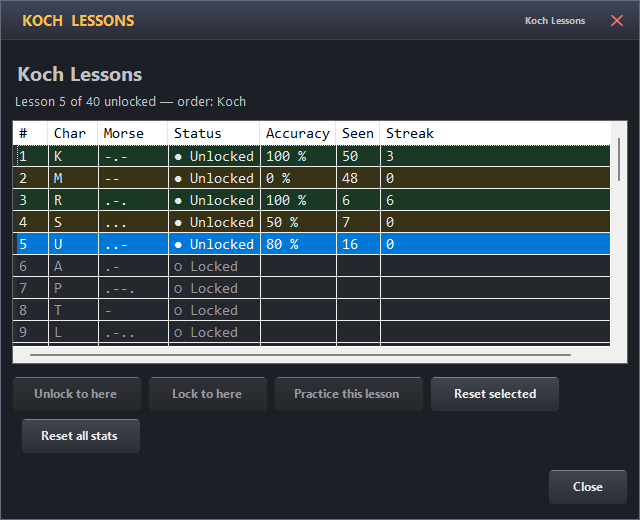
Lesson Progress Overview
Web Morse Trainer
The same Koch trainer in your browser — nothing to install. Open it at cw.openshack.com/morsetrainer/.
The full guide is on its own page — the lessons, per-character progress, the alphabet and Balloon Burst, the optional OpenShack Box on a desktop browser, browser support, and the screenshots. See Web Tools → Web Morse Trainer.
Your progress isn't synced automatically, but you can move it between
the PC and web versions by copying the trainer's settings file
(default.json) across — see
Moving Your Progress Between Web
and Desktop.
Advanced Trainer
Training beyond the Koch progression, using the full character set at your own pace.
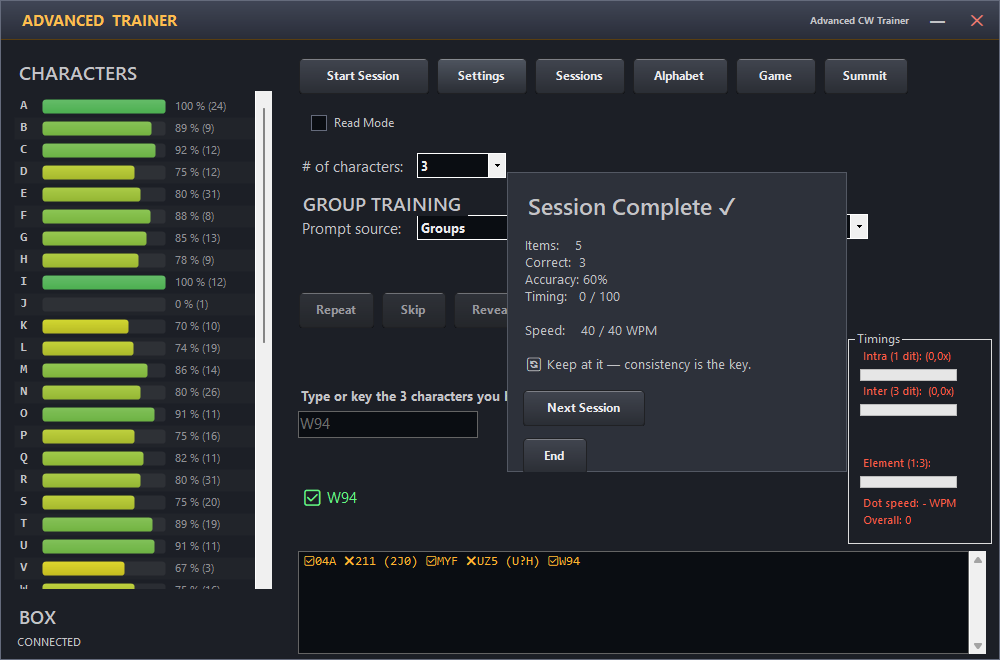
Advanced Trainer — character selection, group size, and text database options
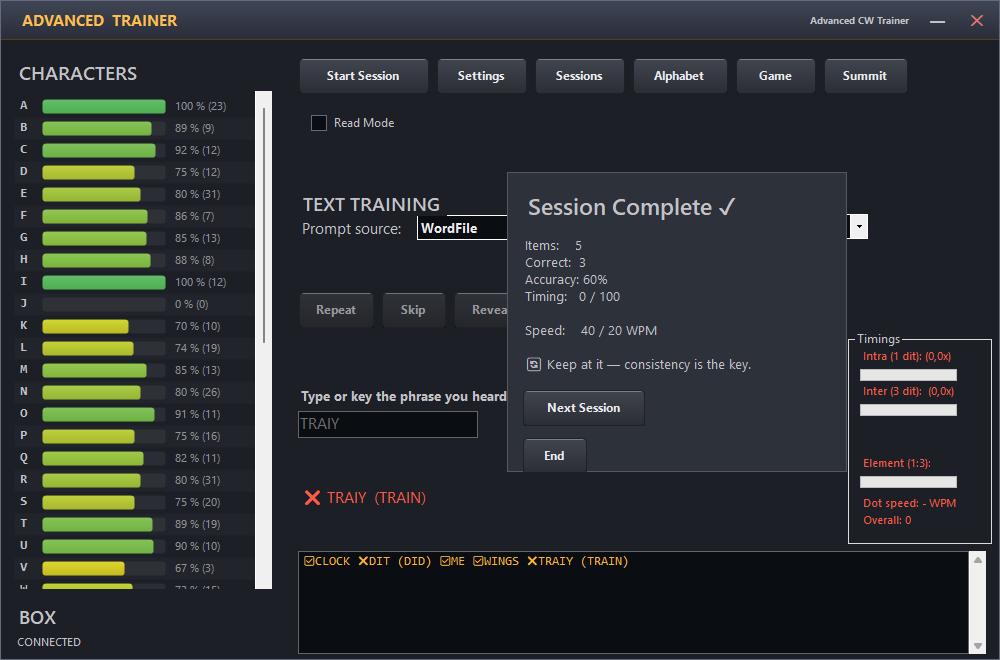
Advanced Trainer — the session report: whole words sent against what was copied (WAVING copied as WAVINZ), the weakest characters, and a drill for them. See Checking Your Copy.
In Advanced Drill, each character appears at most once per group. The trainer balances weak characters across the whole session, aiming for half weak characters and half other allowed characters. Shuffled character pools vary the groups. If either pool is too small, the other fills the remaining places without duplicates. A new drill starts the balance afresh; group length, group count and the A–Z restriction still apply.
Prompt Sources and Dictionaries
The Advanced Trainer supports three prompt source modes:
- WordFile: words or short tokens from dictionary text files
- Groups: random character groups from the full character set
- Callsigns: random callsigns from the included callsign pool
On first use, the Advanced Trainer starts in Groups mode with a group length of 2 at 20 / 10 WPM (Farnsworth). Your choices are saved, so on later runs it reopens with whatever you used last.
The program includes built-in dictionaries for English words, German words, and ham radio abbreviations, plus a Callsigns pool based on the well-known MASTER.SCP list.
You can add your own WordFile dictionaries: click the folder icon next to
the file list in the Advanced Trainer to open the local texts folder, then add a UTF-8
.txt file with one word or token per line. New files appear automatically in
the file list.
Key Differences from the Koch Trainer
| Aspect | Koch Trainer | Advanced Trainer |
|---|---|---|
| Character set | Progressive (one new character per level) | Full set always (A–Z, 0–9, / = ? .) |
| Input | Keyboard or Box keying | Keyboard or Box keying |
| Prompt options | Koch-character prompts | WordFile / Groups / Callsigns, with items-per-prompt and group-length options |
| Profile | Separate per learner | Single shared "advanced" profile |
Using the Advanced Trainer
- From the dashboard, click Improve → Advanced Trainer.
- Optionally connect your Box for keying input and Box audio output.
- Select a prompt source (WordFile, Groups, or Callsigns).
- Configure WPM/Farnsworth and source-specific options (items per prompt, group length).
- Click Start. Selection adapts continuously to your current performance.
- Type each heard character, or key it on your paddle. Results are scored and saved automatically.
When keying on the paddle, your answer is evaluated after a short pause once you stop sending — not the instant you reach the expected number of characters. You can keep keying past the expected length; any extra characters are counted and the answer is then marked wrong.
When you are listening to an audio prompt of a single word or group, press the Space bar to replay it.
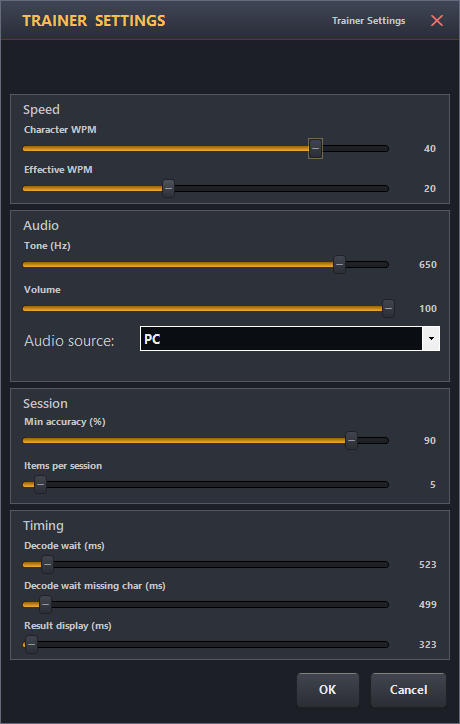
Advanced Trainer settings — WPM, Farnsworth, characters per group and Audio Source
The Advanced Trainer uses the same global PC audio output device setting as every other PC-side player. To send the audio to a different speaker set or headphone output, change it once in Settings → Advanced.
Read Mode
Read Mode turns the exercise around: instead of listening and writing down what you hear, the prompt is shown on screen and you send it on your paddle. It is a sending drill, so it needs a connected Box for keying, and the toggle stays disabled until a Box is found.
As you key, the characters the decoder recognises appear live in the input box, so you can watch your sending being read back. The final character appears once you stop sending and the short decode pause has passed.
Session History
Open Sessions inside the Advanced Trainer to review all past session scores, accuracy over time, and character-level statistics. You can also reset the advanced profile from this view.
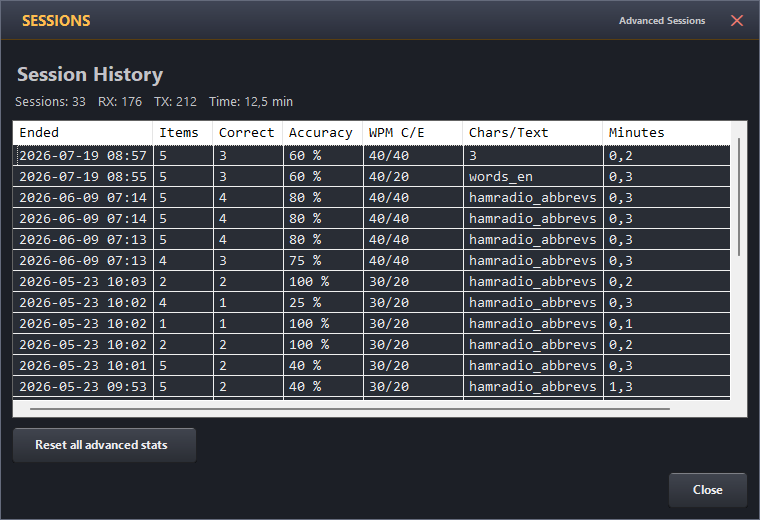
Session History — accuracy over time and character-level statistics
Balloon Burst Game 🎈
A fast-paced Morse keying game that can train single characters, random groups, words, or callsigns.
Balloons carrying Morse targets float upward across a dark canvas. Type the matching target on your keyboard — or key it on the OpenShack Box paddle — and the balloon bursts in a satisfying pop. Miss a balloon and it sticks to the ceiling; if any column grows five balloons deep, the game ends. Speed and spawn rate increase with every level, pushing your recognition and keying reflexes harder.
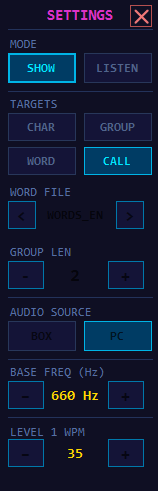
Balloon Burst settings — choose target source, listen/read style, group length, word file, and start level
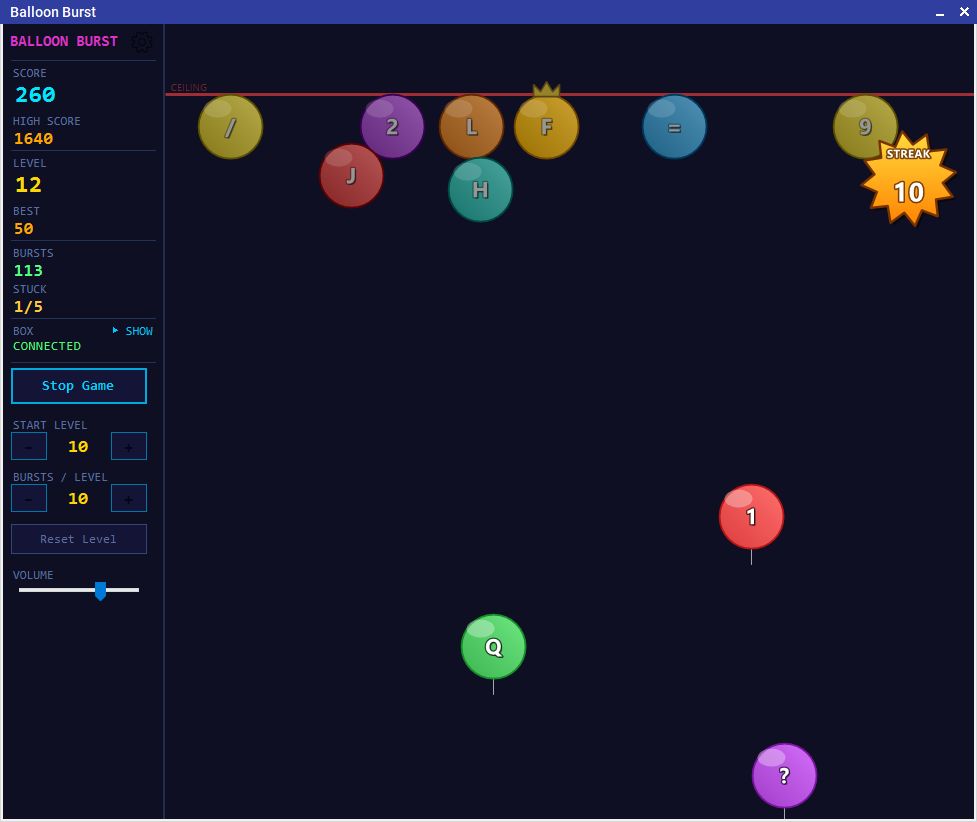
Characters mode — type or key the single character before its balloon stacks at the ceiling
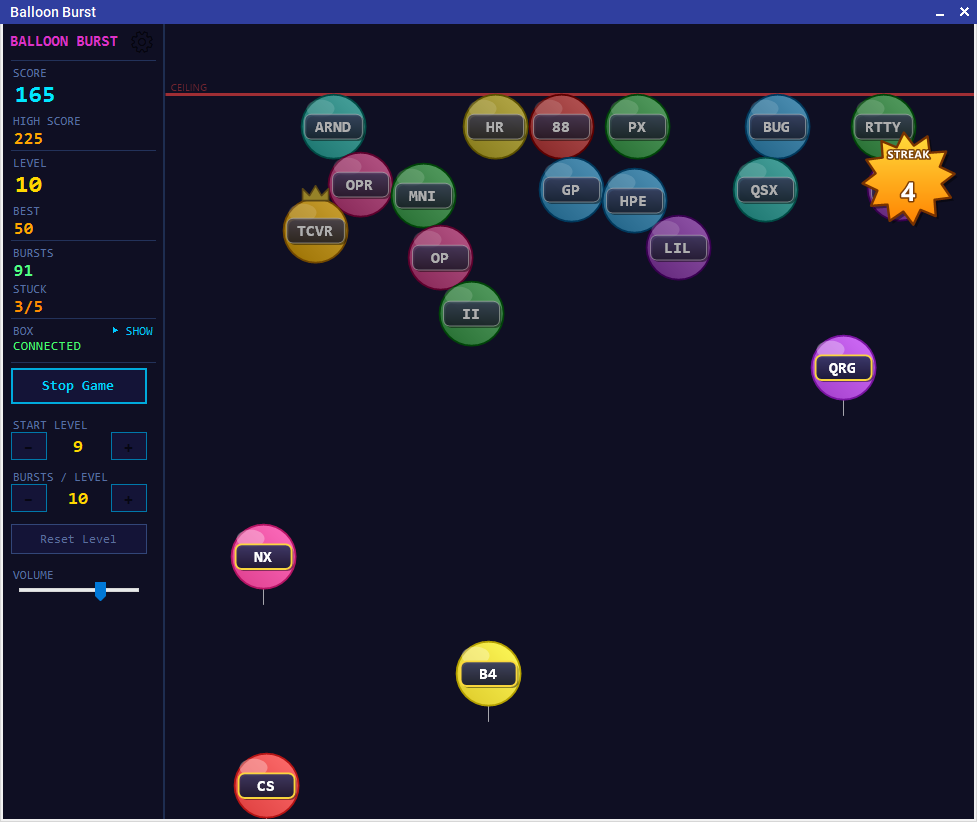
Words mode — burst multi-character targets by typing or keying the complete word
How to Play
- Open Learn → Balloon Burst from the dashboard, or click Game inside either trainer. A trainer launch shows its current character selection: choose CURRENT SELECTION for focused practice or FULL GAME for A–Z, 0–9 and
/ = ? .. - No hardware is needed — the keyboard alone works. Optionally connect the OpenShack Box to key on a paddle as well (paddle keying needs a desktop browser).
- Click Start Game. Balloons begin floating up immediately.
- Type the target shown on any balloon, or key it on the box paddle. In Listen Mode, copy the target by ear first. On a phone or tablet, tap it on the on-screen keyboard. Any balloon in the air can be burst at any time — not just the lowest one.
- What you type or key appears in the answer strip at the bottom of the game. A character or group counts as soon as its last character is in, so fix a typo before that: ← → Home End move the cursor, Backspace and Delete remove a character. A word or callsign counts when you press Enter. The strip then shows your answer briefly in green for a burst or orange for a miss. On the paddle, a balloon bursts as soon as your keying matches it; Backspace on the keyboard removes the last decoded character.
- If a balloon reaches the ceiling it sticks and stacks on top of previously stuck balloons. A column five balloons deep ends the game.
Target Sources and Listen Mode
A trainer launch asks which base character set to use, and the settings panel decides what kind of targets appear on the balloons.
In the desktop app, choose TYPE or KEY directly below Start Game in the sidebar. TYPE means listen and answer on the keyboard; KEY means read the target and send it with the OpenShack Box. The choice is locked during a run and when a competition controls the input method.
The coloured status above the switch stays visible: Leaderboard means the setup matches a standard public class; Open class means it can enter the general public board; Practice only means local personal bests only. Hover over the status or open Settings for the detailed class or reason. Eligible does not mean automatically published.
| Launch point | Characters used |
|---|---|
| Morse Trainer toolbar → Game | Choice of your displayed current Koch set or the full A–Z/0–9 game |
| Advanced Trainer toolbar → Game | Choice of the displayed advanced set or the full A–Z/0–9 game |
| Dashboard → Learn → Balloon Burst | Full character set (A–Z, 0–9, / = ? .) |
| Target source | What you practise |
|---|---|
| Characters | Classic one-character balloons. Best for early recognition and unlocked Koch lessons. |
| Groups | Random groups from the active character set. Set the group length from 2 to 5 characters. |
| Words | Words from the selected local text-mode word file. Useful when you want real rhythm instead of isolated letters. |
| Callsigns | Random callsigns from the MASTER.SCP list for callsign and contest-style practice. |
| Listen Mode | The game plays the target as CW and hides it until you answer or reveal it, so you practise copying by ear. |
Levels and Scoring
Every 10 successful bursts advances you to the next level — use the BURSTS / LEVEL control in the sidebar (5–50) if you want more practice at each speed or a faster ramp. A burst scores 10 points regardless of level, and a wrong answer costs 5 points — though your score never drops below zero.
Keep an eye out for the golden balloon: it wears a little crown, glows and sparkles, and bursting it is worth 50 points. It only appears now and then, and never more than one at a time.
Three correct bursts in a row make a comic-style STREAK star pop up below the ceiling, complete with its own fanfare. It keeps counting your run — until the next wrong answer makes it vanish. While the star is up, every burst pays a bonus on top: as many extra points as your run is long, capped at +20 — the tenth burst in a row scores 10 + 10, and the pop shows exactly what it paid.
| Level | Balloon speed | Spawn interval | Max simultaneous balloons |
|---|---|---|---|
| 1 | 55 px/s | 2.5 s | 1 |
| 2 | 67 px/s | 2.3 s | 2 |
| 3 | 79 px/s | 2.1 s | 3 |
| 4+ | +12 px/s per level | −250 ms per level (min 700 ms) | 4 (cap) |
Start Level
Advanced players can skip the early levels. Use the − and + buttons in the sidebar to choose your starting level before the game begins. As you reach new levels during a game, the start level advances automatically so your next game picks up where you left off.
Click Reset Level to set the start level back to 1.
World Leaderboard Runs
Balloon Burst remains a normal game: after a completed compatible run, OpenShack asks whether you want to review and publish it. The public board compares twelve focused classes: Show / Paddle and Listen / Keyboard, each with Characters, Callsigns, or Char Groups of length 2, 3, 4, or 5.
A publishable run uses the complete 40-character set
(A–Z, 0–9, / = ? .) and exactly
10 BURSTS / LEVEL. Listen runs also use a 12 WPM base
and a +2 WPM increase per level. Your starting level may be anywhere from
1 to 50; it is recorded but does not create another category. The board
shows both your points and the highest level reached. Words and all other
settings still count locally, but are not published.
Sound
The game plays short synthesised sound effects for balloon bursts, misses, streaks, level-ups, and game over. Use the Volume slider at the bottom of the sidebar to adjust the level; the setting is saved automatically.
Personal Best
Every completed run with a positive score records your final score and level to the Personal Best leaderboard — top 10 Balloon Burst runs, ranked by score with the level reached shown alongside each entry.
In the desktop game-over summary, click Show Leaderboard or Publish Score to open and highlight that exact run, even if it falls below the saved top ten. Aborted runs do not show this link.
Your settings decide which runs are compared with each other. Each card shows them under its title, for example Full Set · 10 bursts/level · 12 WPM start · +2 WPM/level. Change BURSTS / LEVEL — or, in Listen mode, the starting speed or the WPM ramp — and those runs get their own list, because a longer level or a slower climb gives you far more time to collect points. The card with the standard settings always comes first. Your start level is not part of it: it only skips the easy levels at the beginning.
The HIGH SCORE on the front panel follows the same rule: it always shows the record for the settings you currently have set up, so it is the mark you can actually beat right now. Change a setting while idle and the number changes with it.
CW Summit Game
A timed speed-climbing game for copying characters, groups, words, or callsigns at rising WPM.
CW Summit sends one Morse target at a time. You answer with the OpenShack Box paddle or with the keyboard. Correct answers push the current WPM upward; missed answers pull it down according to the ladder rules you set. The whole run becomes a scrolling mountain profile, so you can see where you climbed cleanly, where you slipped, and whether you crossed your personal best peak.
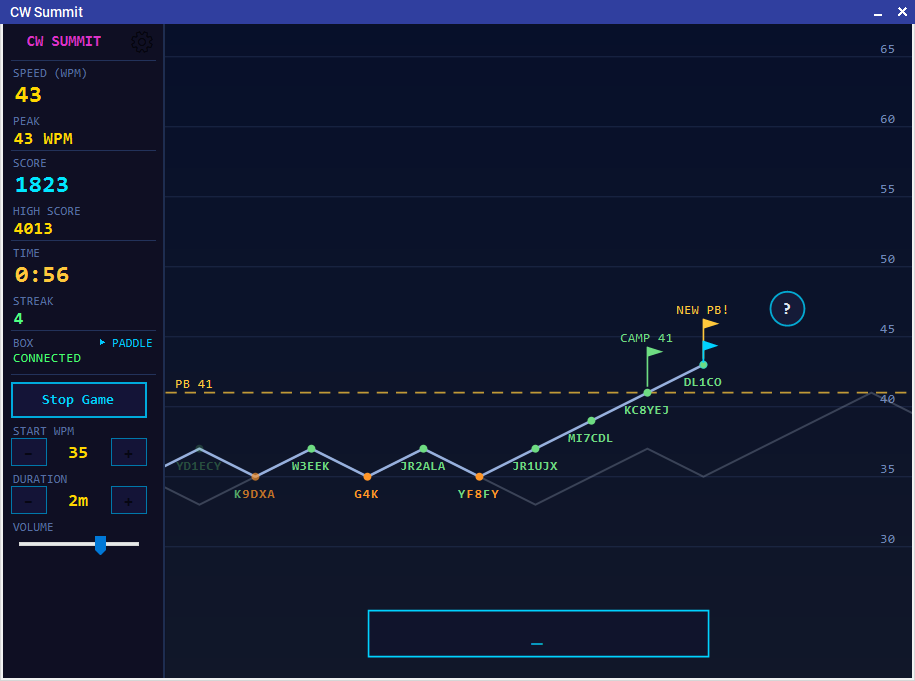
CW Summit — current WPM, peak WPM, score, streak, PB line, camps, ghost run, and live answer strip
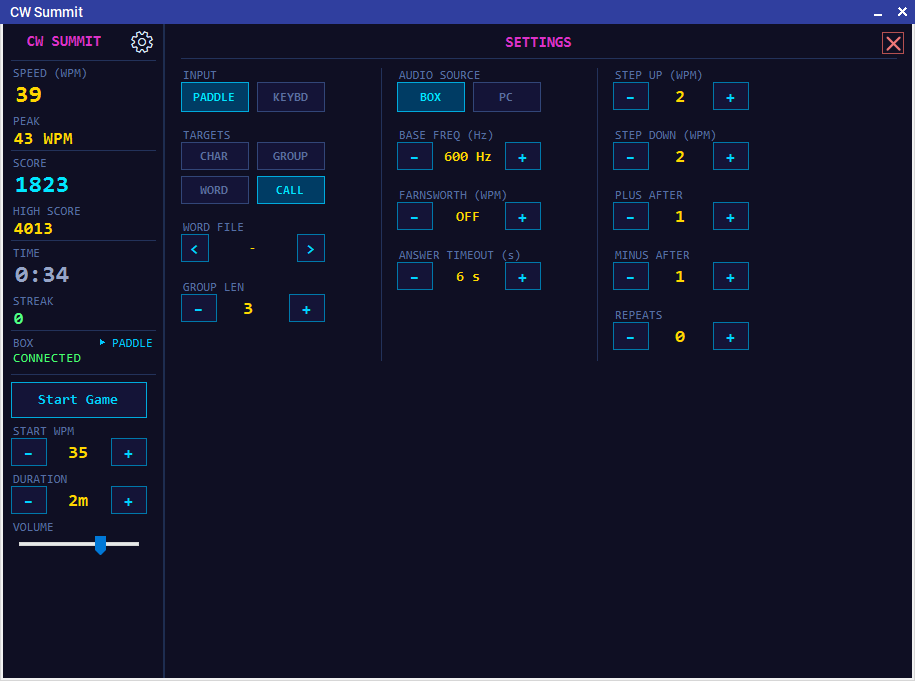
CW Summit settings — input, target source, audio source, Farnsworth, timeout, repeats, and ladder rules
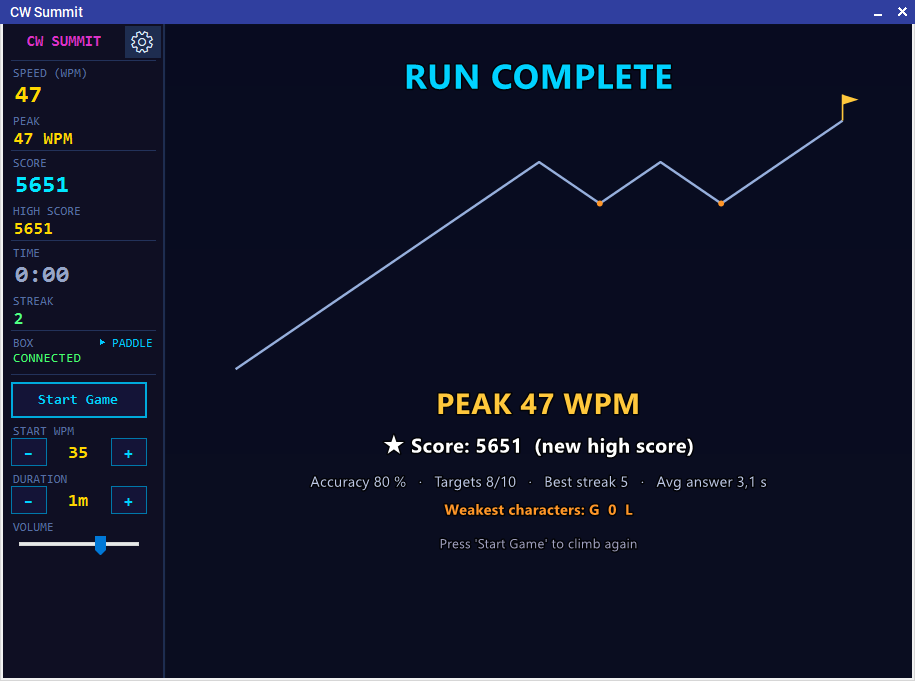
CW Summit highscore view — follow speed, peak WPM, score, high score, time, streak, and the full mountain profile
How to Play
- Open Improve → CW Summit from OpenShack, or click Summit inside either trainer. A trainer launch shows its current set and asks whether to keep it or open the full A–Z/0–9 game.
- Choose Start WPM, Duration, and Volume on the front panel. Runs can be 1–15 minutes, with a start speed from 5–90 WPM.
- Choose TYPE or KEY below Start Game in the desktop sidebar. Open the settings panel for target source, audio source, Farnsworth spacing, answer timeout, repeats, and the WPM ladder rules.
- Click Start Game. After a short get-ready pause, CW Summit sends the first target and starts the clock.
- Copy the target by ear and answer on the paddle or keyboard. Keyboard answers finish with Enter; paddle answers finish when the target length is reached, after a word gap, or when the answer timeout expires.
Targets, Input, and Audio
| Setting | What it does |
|---|---|
| Launch character set | Dashboard launch uses its full set. A trainer launch shows the current Koch or advanced selection and offers CURRENT SELECTION or the exact A–Z/0–9 FULL GAME set. |
| Target source | Characters, random groups, words from the selected word file, or callsigns from the MASTER.SCP list. |
| Input | TYPE selects keyboard answers; KEY selects keying via the OpenShack Box. The sidebar switch is locked during a run or a competition-controlled session. Box input uses the same free-form decoder pipeline as Balloon Burst, so it follows the timing you actually send. |
| Audio source | The OpenShack Box can announce the targets. PC audio is also available, and the game falls back to PC playback if Box audio is selected but no Box is connected. |
| Farnsworth | Optional effective spacing from 5–40 WPM. Set it to OFF for normal timing. |
Ladder Rules and Scoring
The sidebar always shows Leaderboard, Open class, or Practice only above TYPE / KEY. These distinguish a standard public class, the general public board, and local practice; they do not publish a score automatically. The tooltip and Settings explain the current class or restriction.
The default ladder starts at 20 WPM, steps up 2 WPM after every correct answer, and steps down 2 WPM after every miss. You can set step size from 1–5 WPM, require 1–3 correct answers before climbing, require 1–3 misses before dropping, allow 0–2 repeats, and set the answer timeout from 3–10 seconds.
- A correct target scores current WPM × target length.
- Using a repeat halves the value for that target according to the number of attempts used.
- A first-try answer within 2 seconds earns a 25% speed bonus.
- Streak bonuses begin at three correct answers in a row and are capped at +20.
- Each first crossing of a +5 WPM camp above the start speed adds 100 points.
- Crossing the stored personal-best peak for the active setup adds a one-time 250 point bonus.
- At the end of the run, CW Summit adds a peak-WPM-by-accuracy bonus so a clean climb beats a messy one.
The Mountain Profile
The chart is not decorative: it is your run history. The vertical axis is WPM, with a faint grid every 5 WPM. Each completed target becomes one segment of the mountain. Correct targets appear above the line in green; missed targets appear below the line with per-character feedback, so you can see which characters were copied and where the answer drifted.
The gold dashed line marks the stored personal-best peak for the same input mode, target source, and duration. Camp flags mark the first crossing of each +5 WPM step above your start speed. A translucent ghost line replays the best previous run for the same setup, aligned target by target. The answer strip at the bottom shows live typed or decoded paddle input while you copy.
Personal Best and Saved Settings
In the desktop run summary, click Show Leaderboard or Publish Score to open the leaderboard at that exact result. The row is selected and scrolled into view; use its PUBLISH action to publish an eligible score. If the result is below your saved top ten, it is still shown alongside them as THIS RUN while you open it from the summary. Publishing keeps the leaderboard at the same scroll position.
CW Summit records score, peak WPM, accuracy, run duration, start WPM, and Farnsworth WPM in Personal Best. Paddle and keyboard runs are separated, and non-character sources are grouped separately for groups, words, and callsigns. The character set, the run length and your speed rules also decide which runs are compared: each card shows them under its title, for example Full Set / Callsigns · 5:00 min · +1 WPM after 1 correct · -1 WPM after 1 missed. Change a step size, the number of answers it applies after, or switch Farnsworth on, and those runs get their own list. Starting speed, repeats and the answer timeout stay in the same list, because the speed adjusts to you within the first few answers anyway. The HIGH SCORE and the PB peak WPM on the front panel follow the same grouping, so they always show the record for the settings you currently have set up. Settings are saved automatically, and the best run profile is stored as a ghost line for future runs.
Morse Alphabet Cheat Sheet
A quick-reference Morse alphabet panel showing all letters, digits, punctuation, and special characters as graphical cards of dots and dashes, grouped under small section headings and drawn in the same dark console style as the rest of OpenShack. The zero digit is displayed as Ø to distinguish it clearly from the letter O.
The cheat sheet can be opened two ways:
- From the trainer toolbar — it stays visible alongside the training window so you can glance at character patterns without leaving the session.
- Standalone from the dashboard: Learn → The Alphabet.
Click to hear a character. Move the mouse over any card to highlight it, then click to play its exact pattern of dots and dashes — including the prosigns <AR>, <SK> and <ERR> and the accented letters. Opened from the Morse Trainer or Advanced Trainer, cards play at the same speed, pitch and volume you set there; opened on its own, the cheat sheet uses your last trainer settings. Hover a prosign card to see a short note explaining what it means:
- <AR> — end of message (also written +).
- <AS> — wait, stand by.
- <KA> — start of message (also written CT).
- <KN> — go ahead, named station only.
- <SK> — end of contact (end of work), the QSO is over.
- <ERR> — error: the last word was sent wrong and the correction follows (6 or more dots).
Key it and see it. With an OpenShack Box connected, the cheat sheet decodes whatever you send on the paddle or straight key: the card of the character you just keyed lights up green, and the text runs along the readout strip at the bottom — a space appears whenever you leave a word gap. While you are still keying a character, the strip shows its elements as small bars, so you can watch a dash land as you hold the paddle. CLEAR empties the strip. The status line under the strip tells you whether the Box is decoding, the keyer speed it reported, and — for a pattern that matches no card — the dots and dashes it heard.
- From a trainer: the sheet listens to the trainer's own Box connection — there is nothing extra to connect. It pauses while the trainer plays a prompt, so it never gives away a listen-mode character, and it keeps decoding while a game started from the trainer is running.
- Standalone (Learn → The Alphabet): the sheet connects to the Box itself, using your OpenShack Box Settings, with key-out and PTT switched off so nothing reaches the radio. CONNECT / DISCONNECT in the bottom strip control the link. Because the Box accepts only one connection, the sheet lets go of it automatically when you open a trainer, a decoder or another Box window — press CONNECT again once that window is closed.
Straight-key sending is decoded from your own hand timing (the keyer speed set on the Box only applies to paddle modes), so the first few characters may take a moment to settle.
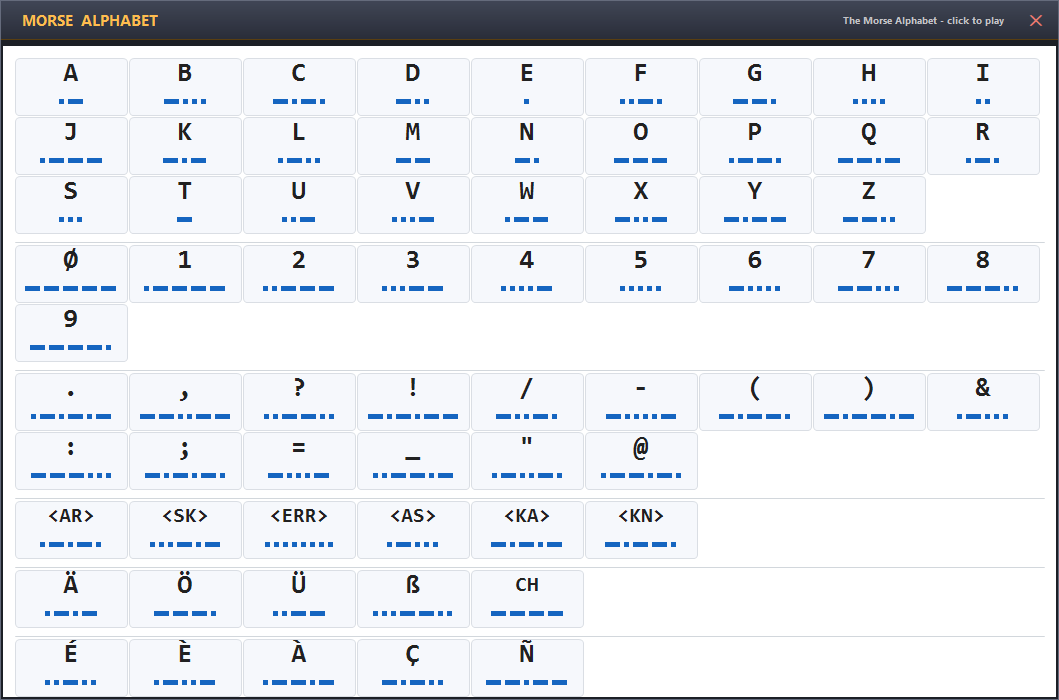
Morse Alphabet Cheat Sheet — click any card to hear it; key on the Box and the recognised card lights up while the text runs along the strip