Tools & Utilities
Utilities for analysing your sending, generating practice audio, and using your CW keyer as a keyboard in Windows applications. For operating at your own radio — Keyer, Audio Decoder, DX Cluster, and the TX Decoder's logger connection — see Standalone Operating; inside a remote session the same tools are covered in Remote Station.
TX Decoder
Shows what you are sending, with real-time timing charts and optional reference-text scoring.
Jump to section →Keyboard Simulator
Key on your paddle. Decoded characters are sent as keystrokes to the active application.
Jump to section →CW Audio Generator
Convert text to Morse code audio. Speed and tone frequency can be adjusted.
Jump to section →TX Decoder
Connect your CW keyer through the OpenShack Box and see what you are transmitting. The TX Decoder provides real-time keying analysis so timing errors and repeated problems become visible.
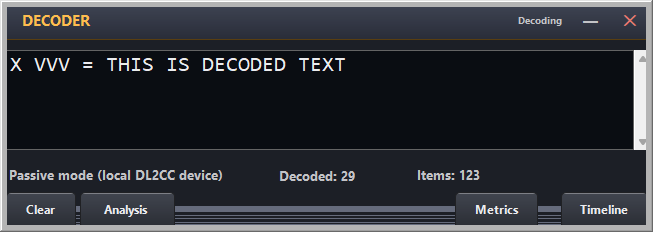
TX Decoder — real-time CW analysis while you key
Live Metrics
| Metric | Description |
|---|---|
| Decoded text | Real-time decoded characters as you key, shown alongside the expected reference text. |
| WPM & CpM | Words and characters per minute (PARIS standard), updated after every character. |
| HST Speed | Speed in IARU HST real marks per minute for the selected text kind (Letters, Figures, Mixed), the unit the official HST software shows. Figures and mixed characters are longer than letters, so the same keying speed gives fewer real marks. Shown only when the metrics window is opened from the TX Trainer. |
| Dot / Dash length | Mean and standard deviation of element durations in microseconds. Ideal ratio is 1:3. |
| Dot/dash ratio | Numeric ratio showing how close your dash/dot length is to the perfect 3.0. |
| Timing timeline | Graphical bar-chart of every element in the current character — each dot, dash, and space shown to scale. |
Two view buttons let you switch the lower panel: the Metrics button shows WPM, dot/dash ratios, and element statistics; the Graph button switches to a graphical element-by-element timing visualisation. The triangle in the metrics window's title bar keeps it on top of all windows (▲) or above the decoder window only (△); the choice is remembered.
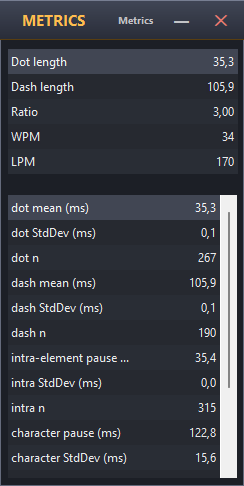
TX Decoder Metrics button — WPM, dot/dash ratios and element statistics
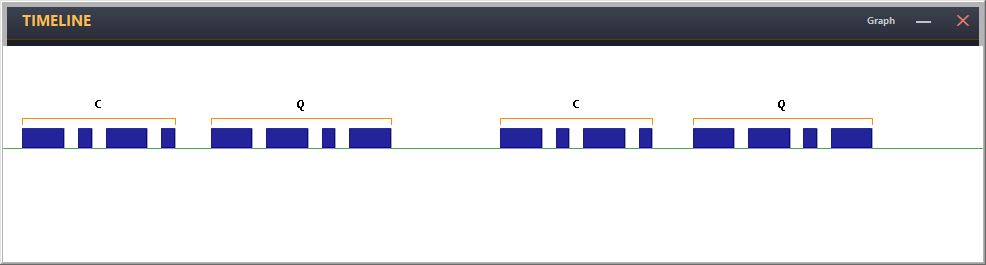
TX Decoder Graph button — graphical element-by-element timing visualisation
Reference Scoring Mode
The TX Decoder can also be used for measured sending practice. Load a reference text, key VVV= or click START to start timing, and key the full text. At the end, OpenShack produces a detailed accuracy report:
- Every character is aligned against the reference using sequence alignment — matches, insertions, deletions, and substitutions are colour-coded.
- An overall accuracy score is computed and saved to your output folder as a text file.
- Texts are identified by sequence number, allowing organised practice sessions.
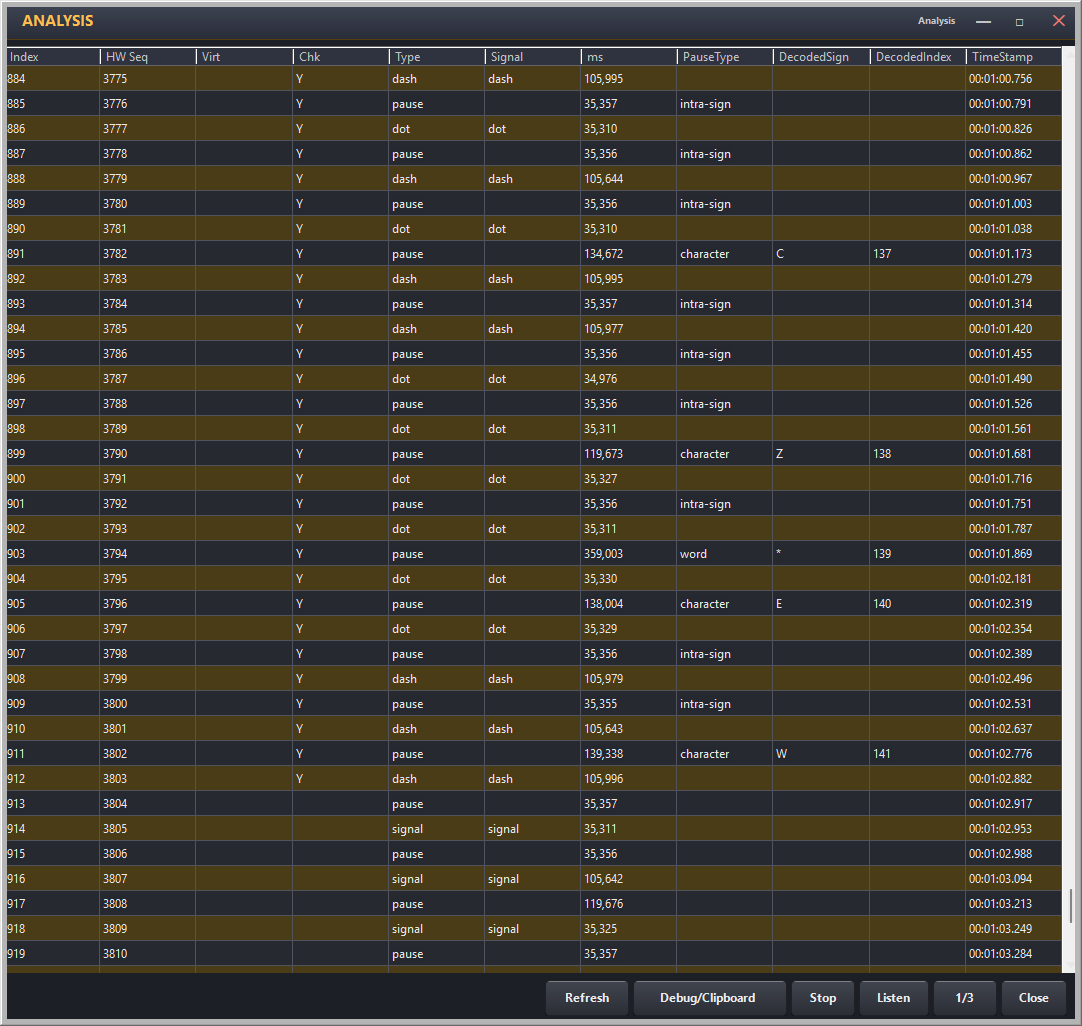
TX Decoder analysis — character-by-character alignment with colour-coded match/error view
Straight Key Mode
Enable Straight Key mode to apply a more generous decoding tolerance — suited to straight key timing variation and bug keying. This setting is also available in the TX Trainer.
Winkey Proxy: Your Logger and the TX Decoder
The TX Decoder and a contest logger no longer have to fight over the OpenShack Box. Click the Winkey button and OpenShack provides a virtual COM port that behaves like a WinKeyer (the Winkey Proxy): any logger with WinKeyer support keys the rig through the Box while the decoder stays open — and the logger's CW appears as decoded text, so you see exactly what went out on the air. Your paddle keeps working the whole time, just like on a real WinKeyer.
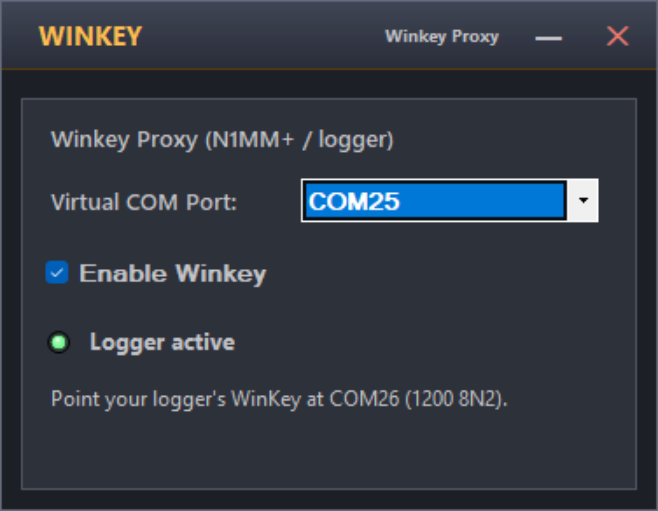
TX Decoder — the Winkey button opens the Winkey Proxy window; the status light next to the button stays visible while you operate
- Open the TX Decoder and click Winkey.
- Pick the Virtual COM Port. If the OpenShack installer created its virtual COM pair, the right port is already selected and a note tells you which port to enter in the logger (for example COM24). Any other virtual COM software works too — select the OpenShack side of your own pair here.
- Tick Enable Winkey. The status shows Waiting for logger.
- In the logger, configure a WinKeyer on the matching port — 1200 baud, 8 data bits, 2 stop bits (the WinKeyer standard; most loggers set this automatically).
- Start the logger. The status turns green — Logger active — and the logger's F-key macros key your rig through the Box.
OpenShack remembers the setting: from then on the logger connection is ready whenever you open the TX Decoder.
Winkey for remote operating — including keying a remote station without a Box at your end — is covered in Remote Station → Winkey.
Keyboard Simulator
Turn your CW keyer into a keyboard. Key Morse code on your paddle and OpenShack decodes each character and sends it as a keystroke to the application that currently has focus.
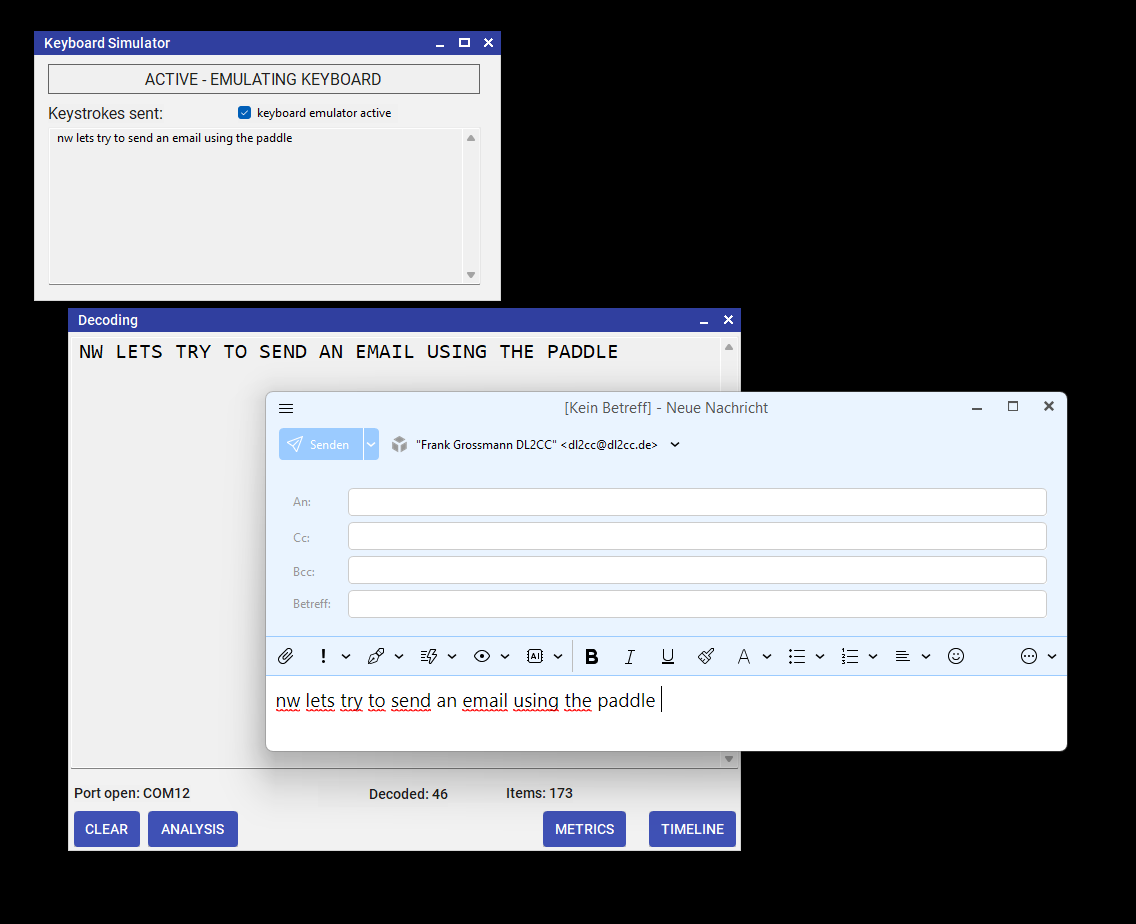
Keyboard Simulator — key Morse on your paddle, characters appear as keystrokes in any app
How to Use
- Open Tools → Keyboard Simulator from the dashboard.
- Ensure the OpenShack Box is connected and keyer input is active.
- Enable Always on Top so the Simulator stays visible while you work in another application.
- Key VVV= on your paddle to arm the Simulator (the status indicator turns green).
- Click on the target application to give it keyboard focus.
- Every character you key is injected as a keystroke directly into that application.
Error Correction
Send the standard CW error prosign — eight dots (········) — and the Keyboard Simulator injects a Backspace keystroke, deleting the last typed character in the target application.
Activity Log
The Simulator window shows a live log of every injected character, so you can verify what was sent.
CW Audio Generator
Generate Morse code audio from any text. Useful for practice recordings, checking reference text before a session, or listening to a phrase at a target speed.
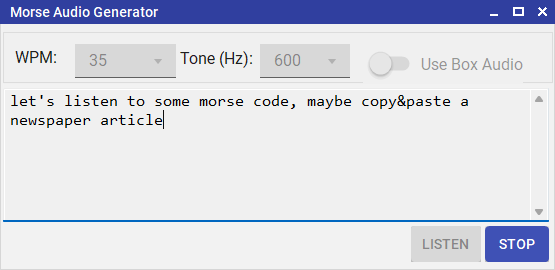
CW Audio Generator — convert any text to Morse code audio instantly
Controls
| Control | Description |
|---|---|
| Text input | Type or paste any text. All standard Morse characters (A–Z, 0–9, common punctuation and prosigns) are supported. |
| WPM | Playback speed in words per minute. |
| Farnsworth speed | Optional effective speed — characters play at WPM but inter-character spacing is stretched. Must be ≤ WPM. |
| Frequency (Hz) | Sidetone pitch, 300–1000 Hz. |
| Play | Start playback immediately through PC speakers / headphones. |
| Stop | Interrupt playback at any time. |
PC Audio Output Device
OpenShack plays its generated audio (Morse tones, AI chat replies, pile-up streams, playback recordings) through a Windows audio device. By default it follows the system default output, but you can pick a specific device — useful when your Windows default is a speaker set you don't want to use for CW practice, or when an app ends up pinned to the wrong device by Windows.
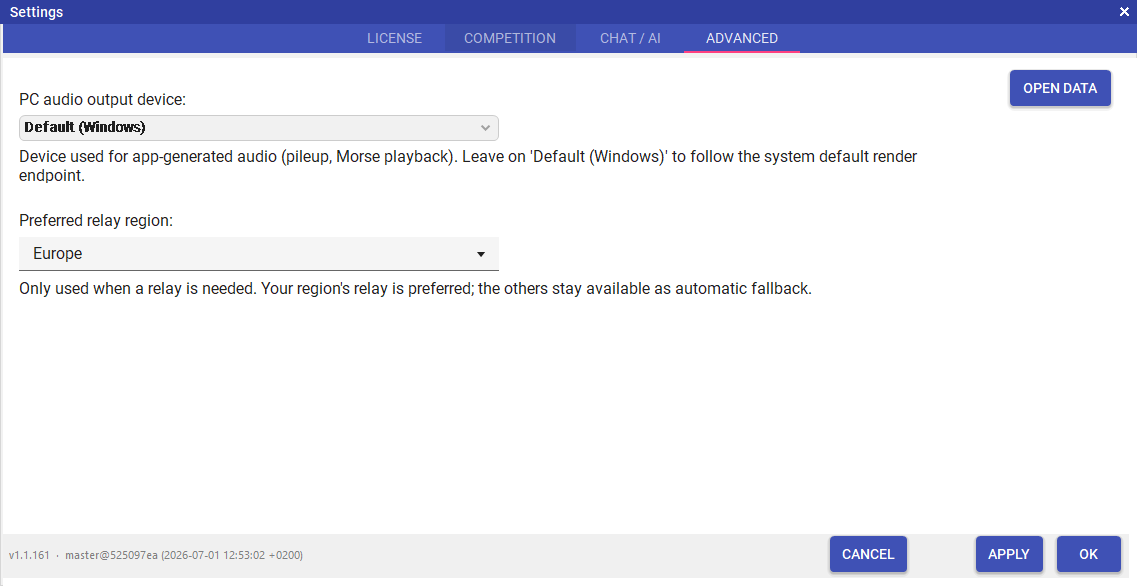
Settings → Advanced — PC audio output device picker
Open Settings → Settings → Advanced and choose the device under PC audio output device. Pick Default (Windows) to keep following the system default render endpoint. The choice is saved per user and applies immediately on the next playback.
Features that use this setting
All features that generate audio on the PC side (rather than through the OpenShack Box hardware) route through this device:
- Koch Trainer — when Audio Source is set to PC.
- Advanced Trainer — when Audio Source is set to PC.
- PileUp Trainer.
- Listening Quiz (training and licensed event variants) — in PC audio mode.
- Quality RX (Newcomer and Competition).
- RX Groups — when Box audio is off.
- TX Trainer — feedback audio.
- AI Chat, Morse Chat and the Morse Game.
- CW Audio Generator (above).
Box audio (OpenShack Box hardware sidetone), the Remote Station's rig-audio playback, and the software sidetone in the Keyer window are independent of this setting — they follow the audio device chosen in Remote Station instead, so that key-side audio stays paired with the remote audio you're already listening to.
Windows lets you pin individual apps to a specific output
device under Settings → System → Sound → Volume mixer
(or run ms-settings:apps-volume). If OpenShack still plays
on the wrong device after picking one here, check that the
app isn't overridden there.
Windows only lets you change an app's per-app device assignment while the app is actively producing audio, so start a playback in OpenShack first, open Volume mixer during that playback, and change the device there.