Standalone Operating
Tools for operating at your own radio — no remote session needed. The OpenShack Box sits between paddle, logger, and rig; OpenShack adds a live view of your keying, CW and voice memories, and DX spots, all in one place.
TX Decoder
See what you are sending — and use Winkey at the same time (Winkey Proxy).
Jump to Winkey Proxy →The Operate Menu
The dashboard has an OPERATE tile ("Standalone tools"). It is available with a CW licence or a Remote licence and gathers the tools you want open while sitting at the radio:
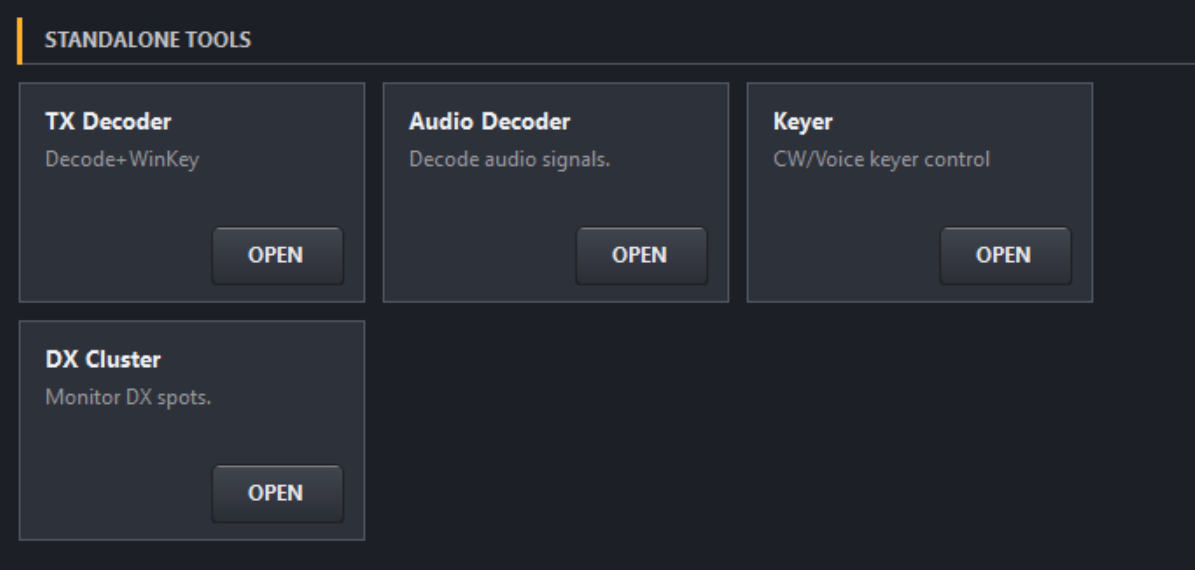
Operate — TX Decoder, Audio Decoder, Keyer, and DX Cluster in one place
| Tool | What it does | Needs the Box? |
|---|---|---|
| TX Decoder | Live decode and timing analysis of your own keying; runs alongside your logger via the Winkey Proxy | Yes |
| Keyer | CW memories, direct text sending, and a voice keyer | Yes |
| Audio Decoder | Decodes received CW from the rig audio via your soundcard | No |
| DX Cluster | Live DX spots with band and mode filters | No |
Winkey Proxy: Winkey and TX Decoder Together
Normally an OpenShack Box can serve only one program at a time: either your contest logger talks to it as a WinKeyer, or OpenShack uses it — not both. The Winkey Proxy in the TX Decoder removes that limitation. OpenShack provides a virtual COM port that looks like a WinKeyer to the logger; everything the logger sends is passed through to the Box, which keys your rig as usual.
The result: any WinKeyer-capable logger runs its F-key macros through the Box while the TX Decoder stays open — and because the Box reports every keyed element back, the logger's CW shows up in the decoder as text. You see exactly what went out on the air, whether it came from the logger, your paddle, or a keyer memory.
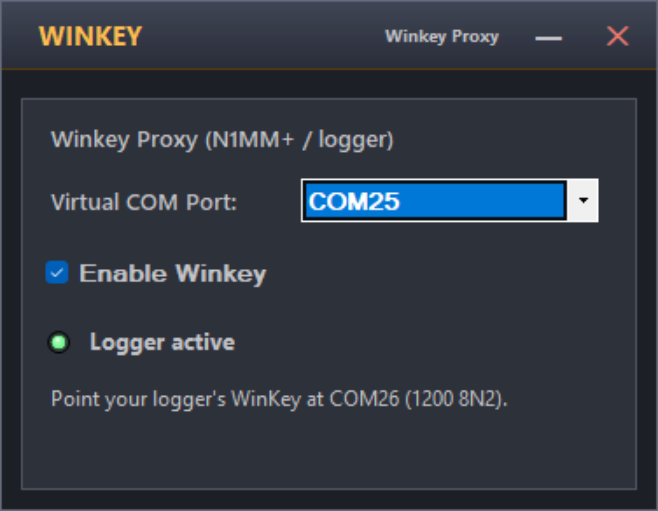
Winkey in the TX Decoder — pick the virtual COM port, enable, and point your logger at the other end
Setup in short: open the TX Decoder, click Winkey, choose the virtual COM port, and tick Enable Winkey. If the OpenShack installer created its virtual COM pair, the port is already selected and the window tells you which port to enter in the logger (for example COM24, 1200 baud 8N2 — the WinKeyer standard). Then configure a WinKeyer in your logger on that port and start it: the status light turns green as soon as the logger connects. The full step-by-step guide is in Tools → TX Decoder → Winkey Proxy.
Keyer
The Keyer window gives you ten CW memories on F-keys, a direct text field for ad-hoc sending, WPM control, and a complete voice keyer with recordable voice memories and PTT. At the station it connects to the Box automatically when opened.
The Keyer and the TX Decoder work together: if the decoder is already open, the Keyer simply sends through the decoder's Box connection — its status shows Via TX Decoder, and your keyer memories appear in the decoder as decoded text, just like paddle or logger keying. Nothing to configure.
All Keyer functions — CW memories, the voice keyer, recording slots, and PTT — are described in Remote Station → CW Keyer & DVK. The window is the same; standalone it keys your own rig through the Box instead of a remote station.
Audio Decoder
The Audio Decoder turns received CW into text. Feed your rig's audio into the PC (line-in, USB audio, or a virtual cable) and the decoder shows a live spectrum, locks onto the signal, and decodes it — useful as a second pair of ears in noisy conditions or during long CQ runs.
Details, including the spectrum display and frequency filter, are in Remote Station → Audio Decoder — standalone, the only difference is that the audio comes from your own soundcard instead of the remote link.
DX Cluster
The DX Cluster window connects to a cluster server and shows live spots with band, mode, and age filters — keep it next to the logger and see where the action is. Pick a Telnet cluster node, or the OpenShack Server, which needs no callsign and gets through networks that block the cluster Telnet ports.
One difference to remote use: standalone, OpenShack has no connection to your rig's frequency, so double-clicking a spot does not QSY the radio and the rig frequency display stays empty. Spot monitoring and filtering work exactly the same. The full reference is in Remote Station → DX Cluster.
One Box, Several Windows
There is only one connection to the Box, and OpenShack manages it for you: while the TX Decoder is open it owns the connection, and the Keyer automatically routes through it (Via TX Decoder). When you open the Remote Station, the standalone windows close so the remote session can take over the Box — and the session brings back its own windows as described in Reopen Windows on Connect.