Web Tools
Browser apps for the DL2CC ecosystem — open them in any modern browser, on a tablet, phone or computer, with nothing to install. This page collects the web-based Morse trainers; your training progress shares the same format as the Windows trainers, so you can carry it back and forth.
Web Morse Trainer
The browser version of the Koch Morse Trainer. Open it at cw.openshack.com/morsetrainer/. It covers the same 40 Koch lessons, per-character progress, the Morse alphabet and the Balloon Burst game as the Windows trainer.
English or German: The OpenShack CW landing page and leaderboard automatically follow the browser language on the first visit. Use the EN / DE switch in the header to change it; the choice is saved in this browser and reused on both pages.
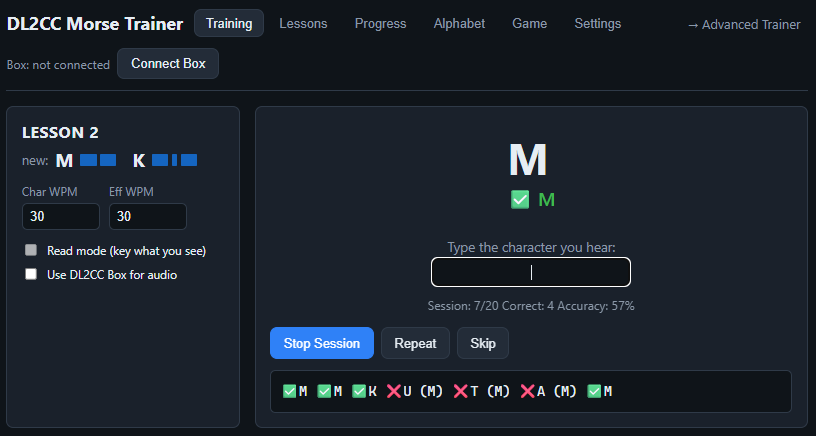
Training — listen and type the character you hear. Set Character WPM and Effective WPM (Farnsworth), switch on Read mode to key it back, and watch the live session accuracy.
Adjust Character WPM and Effective WPM directly on the training screen, below or beside TYPE / KEY. Use the − / + buttons or enter a value. Both controls stay available during a session; changes apply to the next prompt or replay. Audio already playing finishes at its original speed.
The tabs across the top take you through everything the trainer does:
| Tab | What it does |
|---|---|
| Training | The active drill for your current lesson — hear a character and type (or key) it back. |
| Lessons | The 40-lesson Koch list: unlock or lock a lesson, practise a single one, and see per-character accuracy, times seen and streak. |
| Progress | Overall accuracy, average response time, per-character bars, your top confusions and recent sessions. |
| Alphabet | A reference grid of every character and its Morse pattern. |
| Games | The → Balloon Game and → CW Summit links show your current character selection before launch. Keep it for focused practice, or choose FULL GAME for the complete A–Z/0–9 set. |
| Settings | Tone, items per session, minimum accuracy to advance, lesson order, Result display, and profile import/export, with the same names and limits as in the Windows trainers (speed up to 99 WPM). Under Keyer, Relaxed decoding (on by default) reads uneven keying generously; switch it off to have your sending judged on standard CW timing, as described in Session Settings. Show keying timing (on by default) shows the keying strip and the Keying timing panel when you key. The Advanced web trainer has the same switches. |
After every answer you see exactly which characters you got right and which you missed, and the end of a session opens a full report with your weakest characters, your most common mix-ups and a one-click drill for them. It works just like the PC version — see Checking Your Copy. When you key your answers, the keying strip and the Keying timing panel appear below the answer, as described in Keying feedback. On a phone the panel starts folded; tap Keying timing to open it.
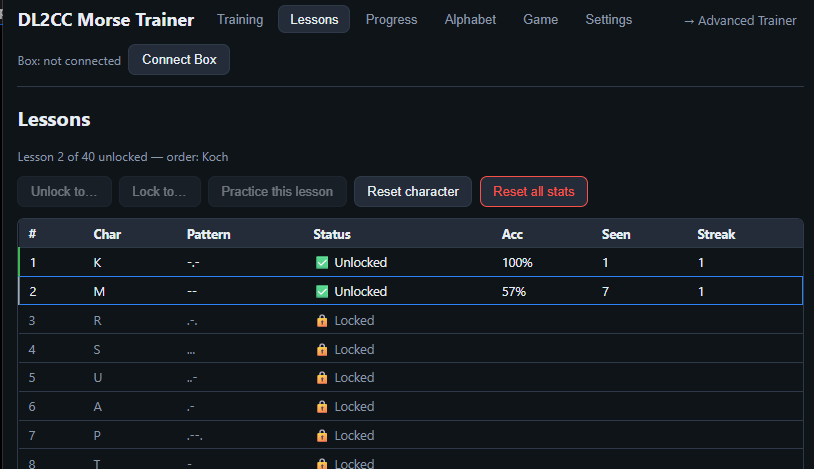
Lessons — the Koch order, lesson by lesson. Unlock, lock, or practise a single lesson, and reset a character or all stats.
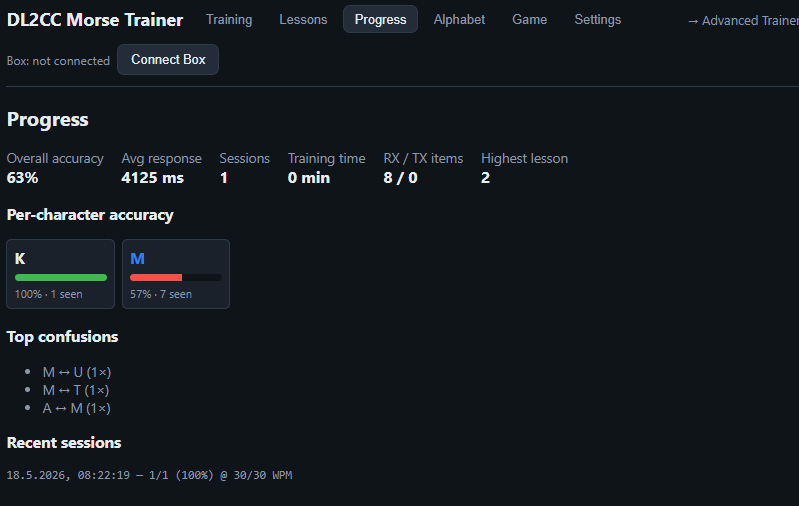
Progress — overall accuracy and response time, per-character accuracy bars, your most common confusions, and recent sessions.
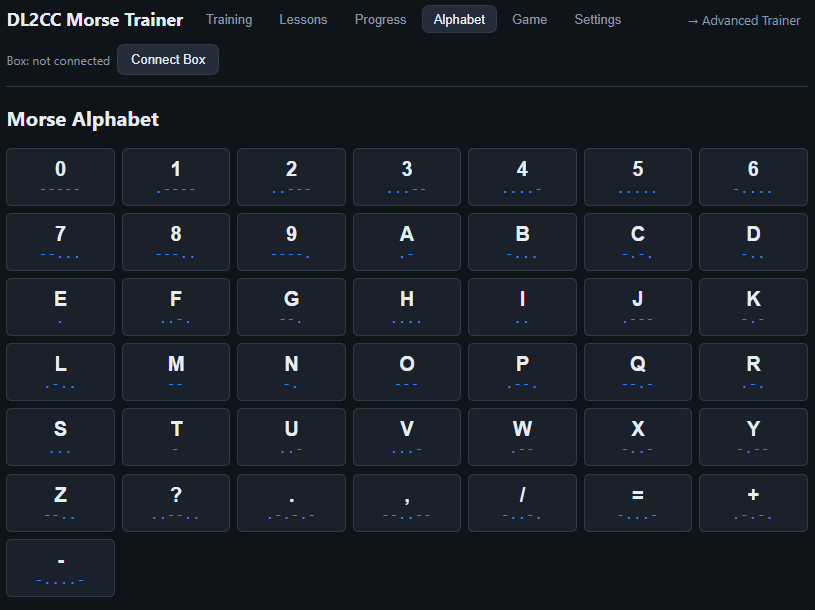
Alphabet — the full Morse reference, letters, numbers and punctuation, with each pattern shown as dots and dashes.
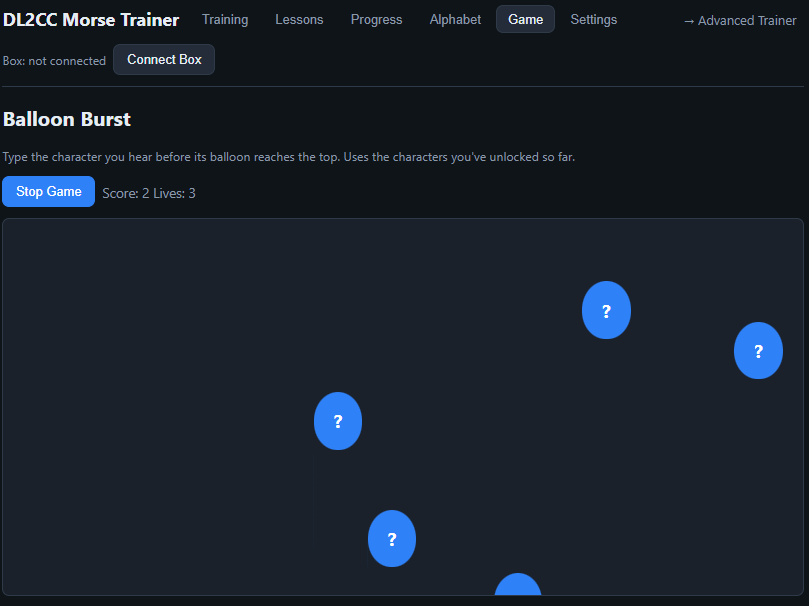
Balloon Burst — type the character you hear before its balloon floats off the top. It only uses the characters you have unlocked.
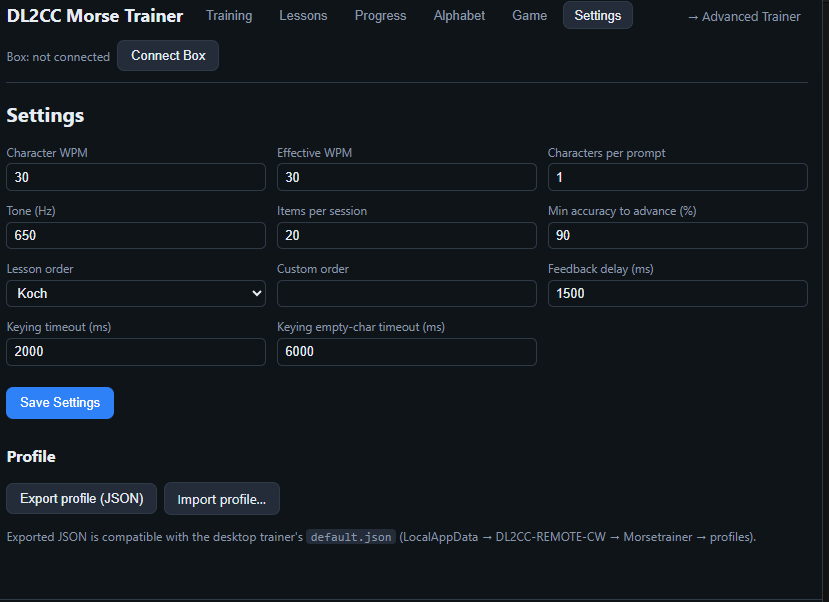
Settings — tone, session length, lesson order and timing, plus Export / Import profile for moving your progress.
Moving Your Progress Between Web and Desktop
The web trainer keeps your progress in the browser, in the same JSON format the Windows trainer uses, so you can move a profile either way without converting anything. The desktop trainer stores its profile in the local data folder at:
%LOCALAPPDATA%\OpenShack\Morsetrainer\profiles\default.json
From the web trainer to the desktop:
- In the web trainer open Settings and click
Export profile (JSON) — your browser downloads
default.json. - Close the desktop trainer.
- Copy the downloaded
default.jsoninto the folder above, replacing the existing file. - Start the desktop trainer — it loads your web progress.
From the desktop to the web trainer:
- Copy
default.jsonout of the folder above. - In the web trainer open Settings and click Import profile…, then pick that file.
- The page reloads with your desktop progress.
Web Advanced Trainer
The browser version of the Advanced
Trainer — for operators who already know the characters and want to
work on speed and accuracy across the full character set
(A–Z, 0–9 and / = ? .), with no Koch
progression. Open it at
cw.openshack.com/morsetrainer-advanced/.
It keeps a separate profile, so it never touches your
Koch progress.
As in the Koch trainer, Character WPM and Effective WPM sit below or beside TYPE / KEY on the training screen. Use − / + or enter a value at any time, including during a session. The next prompt or replay uses the new speed; audio already playing keeps its original timing.
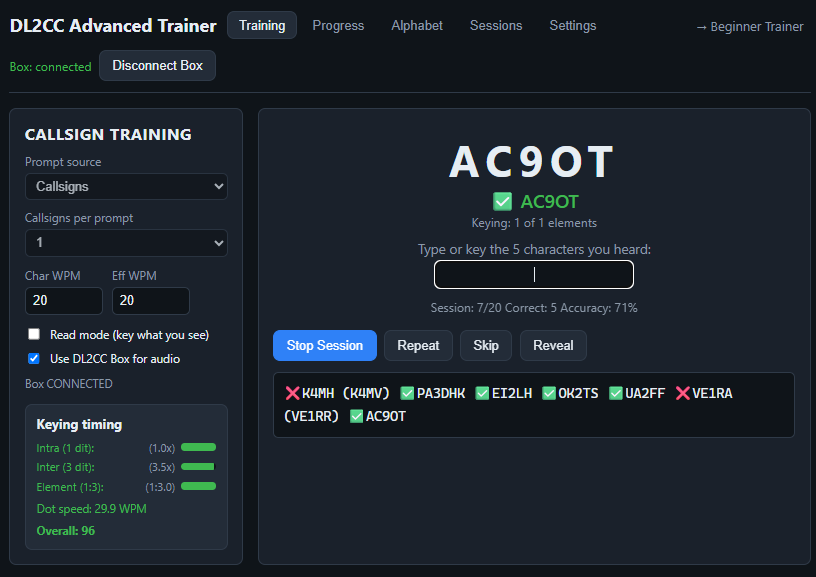
Web Advanced Trainer — TK was keyed right, but the K was uneven: with Relaxed decoding off it would be T E T, because both pauses inside it were 1.8 dots. Below it, the Keying timing panel for the session.
Choose how prompts are generated with the Prompt source selector:
| Prompt source | What you hear |
|---|---|
| Word file | Words and short phrases from a built-in text file (English, German and ham-radio abbreviations), shuffled. |
| Random groups | Random character groups from the full set; you set the group length and how many groups per prompt. |
| Callsigns | Real callsigns drawn from the well-known MASTER.SCP list. |
Set Items per prompt (1–10) and, for groups, the characters per group. Listen mode plays the audio for you to copy; Read mode shows the text on screen and you send it back on a connected OpenShack Box. The Reveal button shows the answer, and Repeat replays it.
Whole words and callsigns are checked character by character: after each answer you see what was sent against what you copied, and the session report collects your weakest characters and most common mix-ups with a drill for them — see Checking Your Copy.
The top-right link switches between the two trainers — → Advanced Trainer from the beginner trainer, and → Beginner Trainer back again — so you can keep both open and jump across.
CW Summit (Web Game)
The browser version of the CW Summit speed-climbing game. Open it at cw.openshack.com/cwsummit/, or through the → CW Summit link in either trainer. The game sends a callsign, word, group or single character in Morse; you copy it and answer — on the keyboard, or on your paddle with a connected OpenShack Box. Correct answers make the code faster, misses slow it down, and your whole run is drawn as a climb up a mountain: camp flags mark every 5 WPM you gain, a dashed line shows your all-time best peak, and a ghost line replays your best run so you can race yourself.
A run is timed (1–15 minutes; the countdown is on the left). Points reward speed, long targets, quick answers and streaks; reaching a new camp or beating your personal-best peak pays a bonus, and at the end your peak WPM is multiplied by your accuracy — so clean copying wins over lucky guessing. In Settings (gear icon) you choose the input (PADDLE or KEYBD), the targets (callsigns, words, groups or characters), audio through the Box or the browser, Farnsworth spacing, how many correct answers it takes to speed up (PLUS AFTER), how many misses to slow down (MINUS AFTER), and whether a missed target is repeated (REPEATS).
Browser Support
Training, lessons, progress and browser audio work in any modern browser — desktop or mobile. How you key is up to you: the on-screen paddle needs nothing at all, a keyboard-style adapter (a VBand interface, or a Morserino over Bluetooth) works in any browser, and the optional OpenShack Box or a K1EL WinKeyer add hardware sidetone. You pick it with the small Connect Keyer dropdown in every trainer, game and the Morse Chat — one setup that carries over between all of them (the Box network link is the same pairing the Remote app uses):
| Keyer link | How it works | Where it works |
|---|---|---|
| Screen Paddle · Touch / N-M Keys | The built-in paddle: tap the two zones on screen, or press N and M. No hardware needed — this is what you get out of the box. | Any modern browser — phone, tablet or computer |
| VBand Paddle · Left Ctrl / Right Ctrl | A VBand-style adapter with your paddle plugged into it. It reports the two paddle levers as Left Ctrl and Right Ctrl, and the browser does the keying — so your speed and the Iambic A/B setting come from the paddle panel here. | Any modern browser — the adapter is just a keyboard |
| Morserino Bluetooth / VBand Straight Key · Left Ctrl | Anything that sends one already-keyed signal on Left Ctrl: a Morserino-32 paired over Bluetooth, or a straight key on a VBand adapter. The device does its own keying, so your Morserino's own speed and keyer settings apply and the browser simply follows what it sends. | Any modern browser — the device is just a keyboard |
| OpenShack Box · Serial | The Box is plugged into this computer; the browser talks to it over the USB cable. | Chrome, Edge or Opera on the desktop only — not Firefox or Safari, not phones |
| WinKey · Serial | A K1EL WinKeyer (WKUSB, WKmini, WinKeyer 3 kits and compatible keyers) is plugged into this computer; your paddle plugs into the WinKeyer. | Chrome, Edge or Opera on the desktop only — not Firefox or Safari, not phones |
| OpenShack Box · Network | The Box is in Network mode and reachable over the internet; the browser connects through the DL2CC relay using your Box-to-Box pairing key — the same pairing the Remote app uses. | Any modern browser — phone, tablet or computer |