Master CW Tools
OpenShack's Master tools help advanced operators train with measurable targets: callsign speed, pileup copy, RX accuracy, sending quality, and personal bests. The rare multi-operator competition workflow is licensed separately and handled by Competition Mode/FormCompetition.
TX Trainer
Key a reference text on your paddle. Scored on accuracy, timing, and error types.
Jump to section →RX / Listening
Listen to CW text at speed and transcribe it: Quality RX, HST five-character groups and the Listening Quiz.
Jump to section →Licensed Events
Licensed-event workflow for supervised sessions with participants, result collection, and scoreboard upload.
Jump to section →RufzXP — Callsign Speed Trainer
RufzXP is an advanced callsign trainer. Classic mode trains fast copy on the keyboard; RufzXP TX! adds paddle keying so the decoder can score the callsign you send back. It belongs with the PileUp trainer and Balloon Burst groups, words, and callsigns: short, repeatable pressure for serious operators.
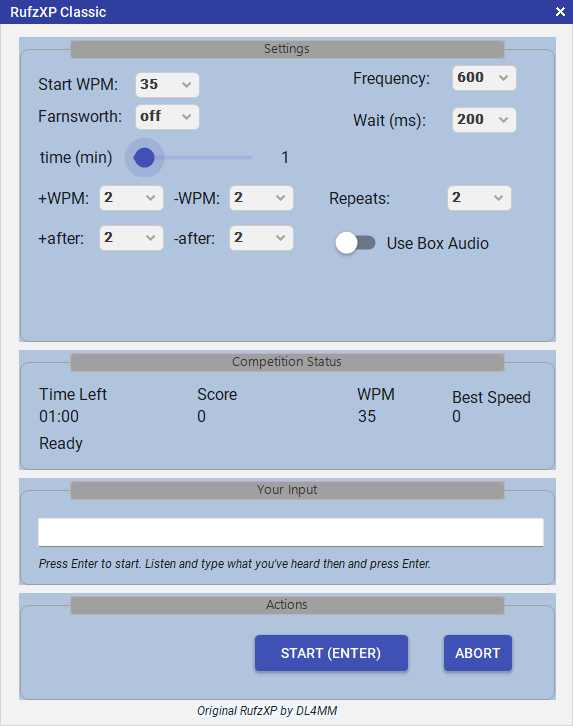
RufzXP Classic — type the callsign you hear; speed adapts on every answer
TX Mode — RufzXP TX!
Hear a callsign and key it back on your paddle. The built-in decoder checks your CW. Requires the OpenShack Box.
Classic Mode
Hear a callsign and type it on your keyboard. Listening and copy practice with no hardware needed.
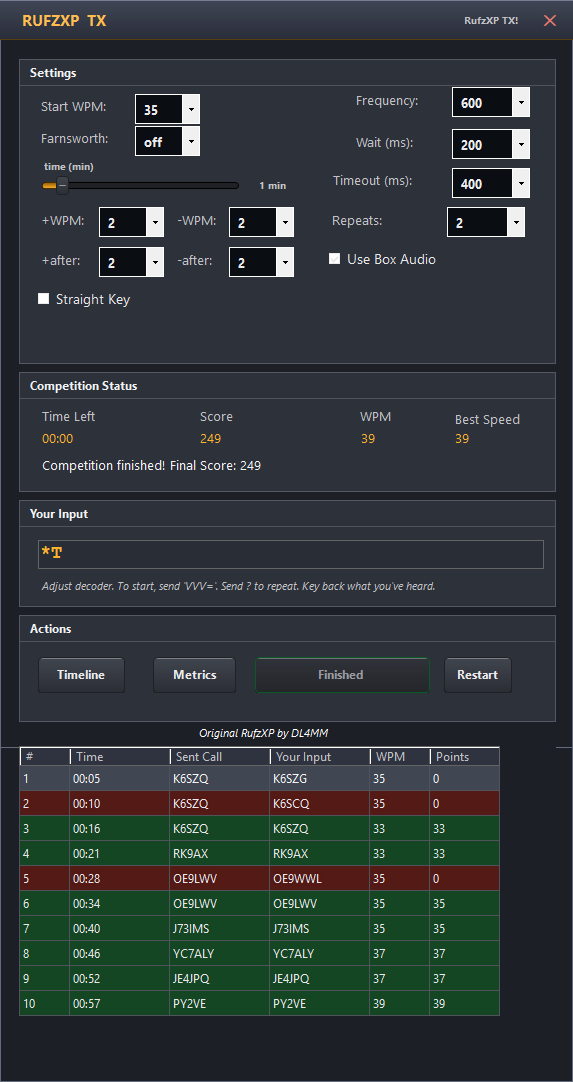
RufzXP TX! — key the callsign you heard on your paddle; decoder checks your timing
Settings
| Setting | Description |
|---|---|
| Starting WPM | Speed at which the first callsign is played. |
| WPM step (±) | How many WPM to add/subtract on correct/wrong answer. |
| Single Speed Mode | Lock the speed to a fixed value — no adaptive changes. |
| Farnsworth | Extra spacing between characters for comfortable practice at any speed. |
| Competition Duration | Fixed 3-minute timer when running inside Competition Mode. |
| Box Audio | Play CW through the OpenShack Box sidetone instead of PC speakers. |
| Retries per callsign | How many attempts before moving to the next callsign. |
| Wait (ms) | Pause after each answer before the next callsign is sent. Applies to both modes. |
| Timeout (ms) | How long to wait for your keyed answer before moving on. TX! mode only — Classic submits with the Enter key. |
PileUp Trainer
Multiple callsigns call simultaneously, each on its own frequency, at its own speed, with its own signal character. Copy as many as you can before time runs out.
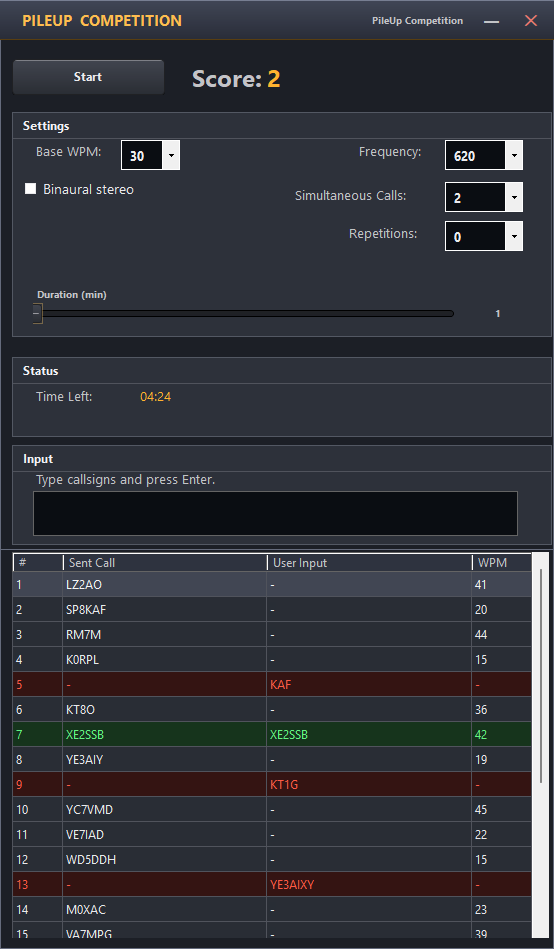
PileUp Trainer — multiple simultaneous CW streams at different audio frequencies
Features
- Multiple simultaneous CW streams — configure how many stations are calling at once.
- Callsigns from MASTER.SCP — the same database used in major HF contests. The PileUp Trainer and RufzXP only start with a complete list of at least 45,000 calls. The list comes with OpenShack and changes only with OpenShack updates — see Settings → Advanced.
- Adjustable base WPM, repetition count, and session duration.
- Keyboard or hardware keyer input for entering copied callsigns.
- Live scoring — correct, missed, and total counts updated in real time.
- Results display — at the end you get a table of the callsigns sent in the pileup together with every callsign you entered. Correct copies are shown green, your wrong entries red, and callsigns you never worked stay white.
- Binaural stereo — optional spatial pan that places each caller left or right by tone frequency, so you can pick out individual stations more easily on headphones. See below.
- Licensed event integration — when opened from Competition Mode/FormCompetition, fixed settings are applied automatically (3 minutes, 2 simultaneous callsigns, 2 repetitions) and results are collected into the event scoreboard.
How the Mix Is Built
Every callsign in the pileup is generated independently, with its own frequency, speed, start time, and signal character.
| Parameter | How it varies |
|---|---|
| Frequency | Base frequency ± 150 Hz, with at least 50 Hz separation enforced between simultaneous callers. |
| Speed | Base WPM ± 15 — callers run at different speeds, so you can't lock onto a single rhythm. |
| Start timing | Random delay of 0–1500 ms per caller, so the pileup builds rather than hitting all at once. |
| Signal character | 60 % clean standard tone; 40 % a randomly drawn style from the signal preset library. |
Signal Presets
The preset library covers a range of signal imperfections you'd encounter on a real band:
- Standard — clean sine wave, perfect 1:3 dot/dash ratio.
- Chirpy / Chirpy short ratio — the tone slides in frequency during each element; short-ratio variant also compresses the dash.
- Elbug / Elbug variations — stretched dash ratio (up to 1:5) with timing variation, simulating a bug or improperly adjusted electronic keyer.
- Flutter / Flutter Elbug — amplitude modulation with QSB-style fading and noise, simulating a weak or disturbed signal.
- Click humming / Elbug Humming — key click artefact or 60 Hz power-supply hum mixed into the signal.
- Farnsworth — fast character elements with stretched word spacing.
How to Use
- From the dashboard, open the PileUp Trainer.
- Set the number of simultaneous callers, WPM, and duration.
- Click Start. Multiple CW streams begin playing at different audio frequencies.
- Type or key each callsign you copy and press Enter to log it.
- At the end of the session, your score and the full callsign list are shown.
Binaural Stereo (pile-up aid)
With several stations calling on slightly different audio frequencies, separating them by ear alone is hard. Tick Binaural stereo in the PileUp window and OpenShack spreads the simulated stations across the stereo image: callers with a tone below the base frequency lean left, callers with a tone above lean right, and a station right on the base frequency stays centred. The effect uses a constant-power pan, so a centred signal is no louder than a fully panned one.
Hearing each station from its own direction lets your brain do what it does in a noisy room — pick out one voice from the crowd. It works best with stereo headphones; on a single speaker or a mono setup the channels mix back to the centre and you lose the benefit.
Below the checkbox a Stereo width (%) slider appears. 100 % maps the full ±150 Hz spread to full-left / full-right; lower values keep the panning more subtle. 0 % is effectively mono.
TX Trainer
The TX Trainer measures the quality of your transmitted CW. A reference text is displayed and you key it on your paddle or straight key. OpenShack decodes your sending in real time and compares it to the original, scoring every character.
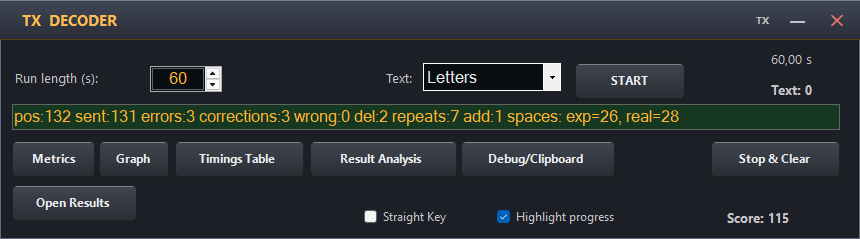
TX Trainer window
How to Use
- From the dashboard, open Master → TX Trainer.
- Select a text set (letters, numbers, mixed, or callsigns).
- A training text is shown first. Key freely and watch the decoder windows — the decoder calibrates to your timing. Continue until decoding looks clean.
- When ready, send VVV= or click START. The window shows GO and the reference text is displayed.
- Start keying — the timer begins with your first element. Set how long a run lasts with the Run length (s) box on the TX window (default: 60 s). In a licensed supervised event the run length is fixed centrally (Settings → Competition), so the box is hidden there. Clicking START during a run discards it and arms a new one; Stop & Clear returns to the training text.
- Results appear when you finish or the timer expires — accuracy, errors, and timing metrics are all displayed. A character you finish keying before the time is up counts, even if its gap only follows after the end; a character still being keyed at the end, and anything keyed later, does not.
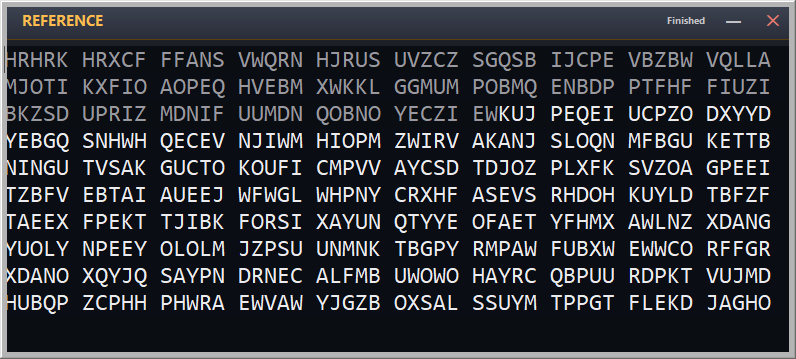
Reference text selection — choose category and sequence number
TX rules
The bottom options bar contains Straight Key, Highlight progress, Show Live Results and two TX rules choices: German DTM rules (selected by default) or IARU HST rules. A filled radio circle identifies the active ruleset. The bar stays at the bottom, below the measurements and the comment line. Settings → Competition uses the same choices; both forms share the saved selection.
Switching the rules while a finished result is shown re-scores that run on the spot: the window shows it under the new rules, and its result file and overview line are updated in place. Switching back restores the original result. In competition mode a result stays under the rules it was run with (the new rules apply to the next run), and IARU HST has no Callsigns texts; the score line then says why it was not re-scored.
Highlight progress greys the reference text up to the last character you sent correctly — exactly to it: a wrong last character stays unmarked. Errors, corrections and the HST cut are shown in the Live Results window (Show Live Results), not in the reference text or the TX decoder window. The reference window has the same triangle in its title bar: ▲ keeps it on top of all windows, △ keeps it above the TX window only. The choice is remembered. Stop & Clear stops a running attempt and shows its result; clicked again, or whenever no attempt is timing, it clears the result and returns to the training text.
HST uses a fixed 60-second run and Letters, Figures or Mixed text. With a paddle, timing starts right after VVV=, or with your first element after START; with a straight key, use GO!. Credit ends before the fourth uncorrected error. Corrections have no count limit or direct penalty and must retransmit the entire group. The full recording remains available for analysis. Switching back to German DTM restores your chosen run length.
A character keyed with a pause inside it decodes as two characters, for example
Y (-.--) as T and W. When the two together make up exactly the expected
character, it counts as the correct character under both rulesets, as in the
official HST software. Live Results notes it, without an error number.
Six or more dots are a correction. A short one (six or seven dots) that stands exactly where a character belongs, with no replay after it, can also be a badly formed character, for example a 5 keyed with one dot too many. The score then takes whichever reading has fewer errors; on a tie it stays a correction. Live Results names it, for example six dots read as a badly formed 5. Eight or more dots are always a correction.
With a paddle and Highlight progress enabled, an HST correction signal moves the highlighting back to the start of the current group. As you repeat characters, the display compares the current and previous groups and moves back to the previous group as soon as it matches better. If both groups start alike, the display stays in the current group until the replay distinguishes them. You can therefore follow a partial replay immediately; the final assessment still requires the complete group. Consecutive correction signals have the same effect as one signal, apart from the time spent sending them. They do not prevent the following replay from identifying the previous group. All signals remain recorded; they cannot move the highlighting farther back through earlier groups.
A restart withdraws the group or groups being repeated. If the time runs out during the replay, the correctly repeated characters still count, as in the official HST software; from the first wrong character on, the rest of the unfinished replay does not. For example, after 45 characters, FSKCZ HIDAD <ERR> FSKC gives 45 − 10 + 4 = 39 credited characters: ten characters are withdrawn and the four correctly repeated characters count.
The HST display shows the total credited marks (characters) and space counts: expected, detected, extra and missing. Extra and missing spaces are listed separately because equal totals can hide misplaced boundaries. For example, one extra space inside a group and one missing space between groups leave the overall count unchanged.
Below the result, the TX window shows how the result was calculated. HST RESULT starts with every character you keyed, corrections included, and goes down to the credited marks: minus the characters your corrections withdrew, minus the second half of any character keyed with a pause inside (it counts once, as correct), minus incorrect characters of an unfinished replay, equals the retained marks; minus the marks after the 4th error, equals the credited marks, with your position in the text. The errors follow (3 are permitted; the 4th ends the credit), and a restart line when a replay was unfinished.
Under KEYING four lines describe how you keyed the credited text: Speed in WPM and HST real marks per minute, Dot : dash (ideal 1 : 3), Evenness (how much the marks and gaps inside characters, the character gaps and the group gaps vary on average, as a percentage of their mean) and Spaces (keyed and expected, extra and missing; not scored under HST). Missing timing data is labelled Timing unavailable.
You can select and copy the measurements; the same block is saved in the result file. HST does not calculate a quality multiplier, deductions, final competition points or DTM personal bests. The measurements stay visible until the result is cleared or replaced.
German DTM Scoring & Analysis
The score is calculated from three components:
| Component | Formula | What it measures |
|---|---|---|
| Position | (60 ÷ time limit) × last correct position | How far you got through the reference text correctly. Normalised to a 60-second baseline so scores are comparable across different time limits. |
| Error penalty | − errors × 5 | Each wrong, missing, or extra character costs 5 points. Errors are found by sequence alignment (Wagner-Fischer) against the reference. |
| Spacing penalty | − |expected spaces − sent spaces| | Absolute difference between word spaces in the reference and in what you sent, at 1 point per space off. Penalises sloppy word spacing. |
The score is floored at zero — it cannot go negative.
After a German DTM run the same area shows DTM SCORE: the three components above with the values actually used (position, errors × 5, spacing), the score (rounded, floored at zero) and your corrections (they cost nothing). The KEYING lines follow, over everything you sent, with CpM instead of HST marks per minute.
- Character-by-character alignment — each sent character is colour-coded: match, insertion, deletion, or substitution.
- Timing metrics — dot/dash ratios, WPM, CpM and the HST Speed (IARU HST real marks per minute for the selected text kind) are tracked throughout.
- Straight key mode — an alternative decode tolerance, more generous for straight key operators.
- File output — full result detail saved automatically to your configured output folder.
Live Results
Show Live Results opens the Live Results window; closing the window clears the checkbox. The window opens with the TX window the first time, and afterwards as you left it: open if it was open, closed if you closed it. It is a normal window you can place, size and cover with other windows; the triangle in its title bar keeps it on top of all windows (▲) or not (△). Starting a run (VVV=, START) does not bring the TX window to the front. Position, size and that choice are remembered like for every DTM window. It follows your keying character by character, under German DTM and IARU HST rules, and shows:
- Status strip — run phase, elapsed run time and your current speed (WPM).
- Tiles — IARU HST: credited marks, errors, corrections, spaces and sent marks; German DTM: score, errors, corrections, missing spaces (L1/L2) and sent marks.
- Groups — the reference text, five groups per row, with what you
sent below each group. Correct characters turn grey, wrong ones red; a skipped
character shows as a red
_and extra characters appear red in the sent line. Errors are numbered (E1,E2, …). A correction shows the withdrawn text struck through and arepeatbadge; a replay still in progress is amber. When repeats do not fit on one line, the sent text wraps and that row of groups grows. An amber bar marks your current position. The small grey numbers at the bottom of each group show the group number on the left (1, 2, 3, …) and, on the right, the characters up to the end of that group (5, 10, 15, …). - Fourth error (IARU HST) — a red line and the badge
4th error – credit ends mark where credit stops. Everything up to and
including the character just before the fourth error counts; text sent after it
stays visible in light red but is not credited. Errors after the fourth are still
numbered (
E5,E6, …) and logged. - Events — a time-stamped log of every error, correction and the end of credit, with the run time at which it happened. Each error after the fourth also shows where credit would end if it were the fourth error. If an earlier error was a decoding fault, use that to correct the credit by hand.
Switching the rules after a run updates the window with the re-scored result. In competition mode the window stays available, but during the run it shows only the status strip and Results appear when the run ends; the full view appears with the result. The result analysis in the TX window is unchanged.
Replay. After a run (or an imported attempt), right-click a group and choose Play from group N to the end, Play group N only or Play the whole attempt. A small Replay window plays the keying as it was sent, with Play, Stop and the speed: 1/1, 1/2, 1/3 or 1/4 (every dot, dash and gap stretched alike; the pitch stays). The chosen speed is remembered; changing it while playing continues from where the replay is. While it plays, Live Results frames the group being heard in amber and marks the reference character under it, and the Replay window names the group, the character and the time. Click another group while it plays to jump there. Stop pauses: the position stays marked and Play continues from the character you were hearing; press Stop again to go back to the start.
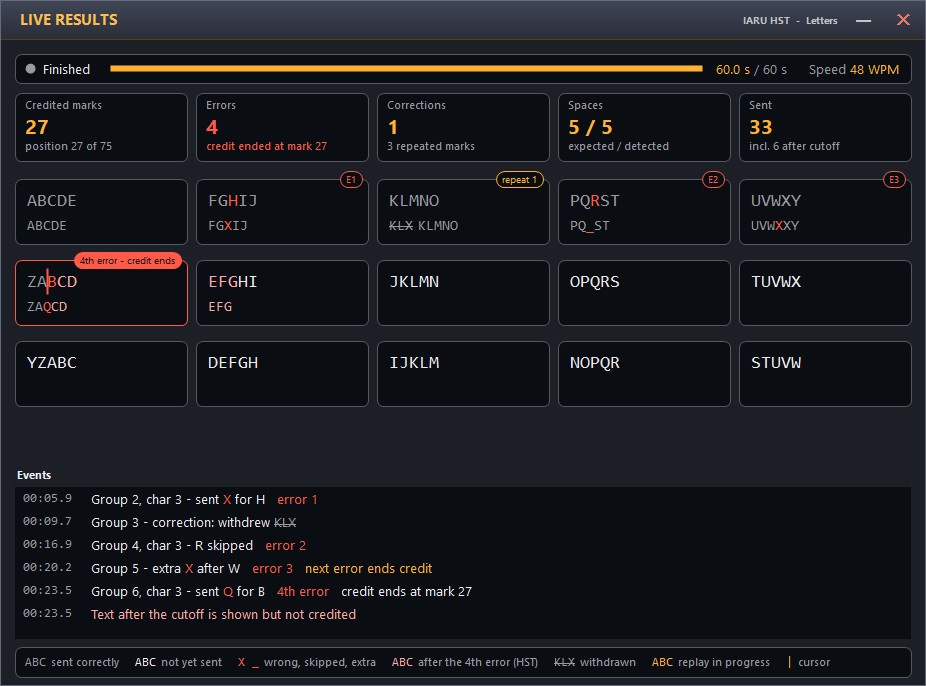
Live Results after an IARU HST run — numbered errors, a correction and the end of credit at the fourth error
Run comment and result overview
Type an optional note into Comment below the measurements, before the run or afterwards. It is saved with that run: in its result file and in the overview. Editing it while the result is shown updates both. The next run starts with an empty comment; a note you type before VVV=, START or READY belongs to that run.
Every attempt writes a full result file to the TX results folder
(Open Results): rules and comment, result summary and
speed metrics, then the Live Results as text, then
the measurements as shown in the window, reference and decoded text, alignment and
timing table. The Live Results text has the same tiles, groups and event log as the
window, with markers instead of colours: under each reference group x
marks a wrong character, _ a skipped one and - one sent
after the 4th error (not credited). A | in the group marks the HST cut,
and withdrawn text is written ~like this~. The header says what started
the run (VVV=, START or READY), and the file ends with the last 30 seconds of keying
before the start: what the decoder read and its timing. If a VVV= does not start the
run, this section shows what the decoder made of it.
The same folder holds an overview of all attempts, updated after every attempt: TX-Overview.csv (semicolon-separated, opens in Excel) and TX-Overview.txt (a table). Each line shows date and time, callsign, comment, attempt, category, rules, key, run length, the DTM score or the HST credited marks and scored errors, position, sent characters, errors, corrections, space counts, speed (WPM) and the result file name. In the result file itself the comment follows the callsign at the top. Both overview files are generated from TX-Overview.json. While Excel has the CSV open it cannot be written; nothing is lost — it is completed at the next attempt or when you click Open Results after closing Excel.
Import Attempt brings a saved attempt back into the TX window. It lists the attempts of the overview, newest first; double-click one, or use Open File... for any result file. The attempt then looks as if it had just finished: result and score, measurements, Result Analysis, Live Results with the event times, and in the decoder window the decoded text, Timings Table (with playback), Graph and Metrics. It is assessed again by the current scoring under the rules it was saved with, so the result can differ from the overview after a scoring improvement. The result file and the overview stay as saved; only an edited comment is written back. Stop & Clear returns to training. Importing is not possible while a run is armed or running.
Why TX Is Valuable for Training
- Objective feedback — you see exactly what your keying produced, not what you intended.
- Error pattern learning — substitutions/insertions/deletions reveal recurring habits quickly.
- Timing control — ratio and spacing metrics make speed increases safer and cleaner.
- Structured repetition — generated text sets let you practice focused drills repeatedly.
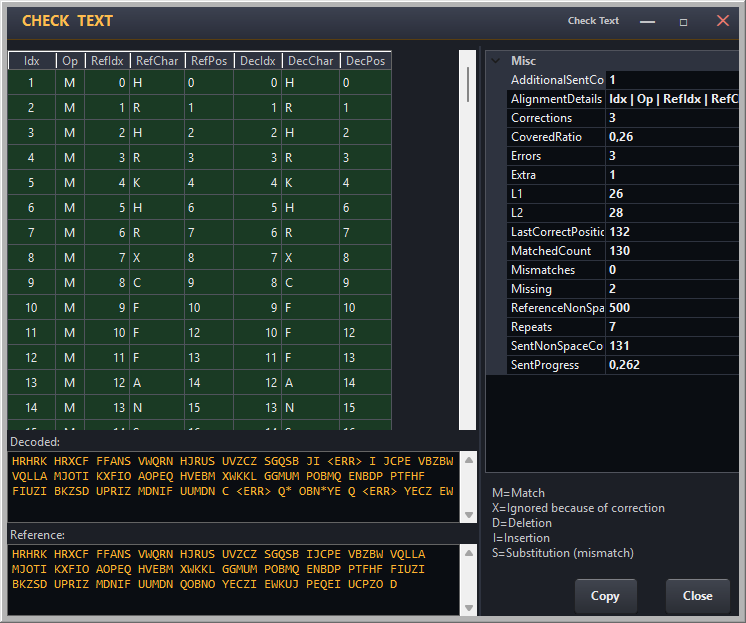
TX Trainer analysis — character alignment with colour-coded match/error view
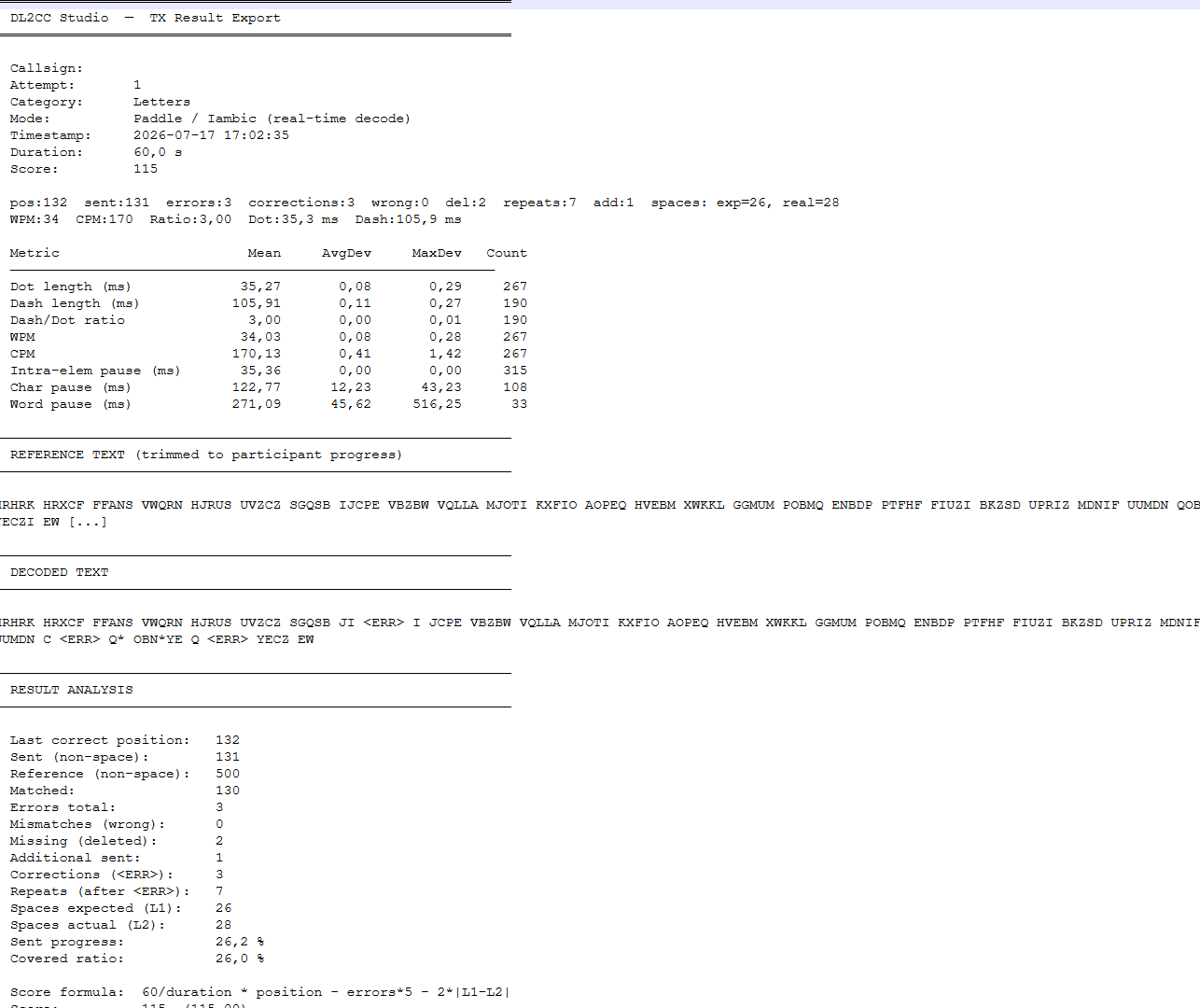
TX results (1) — accuracy score and metrics summary
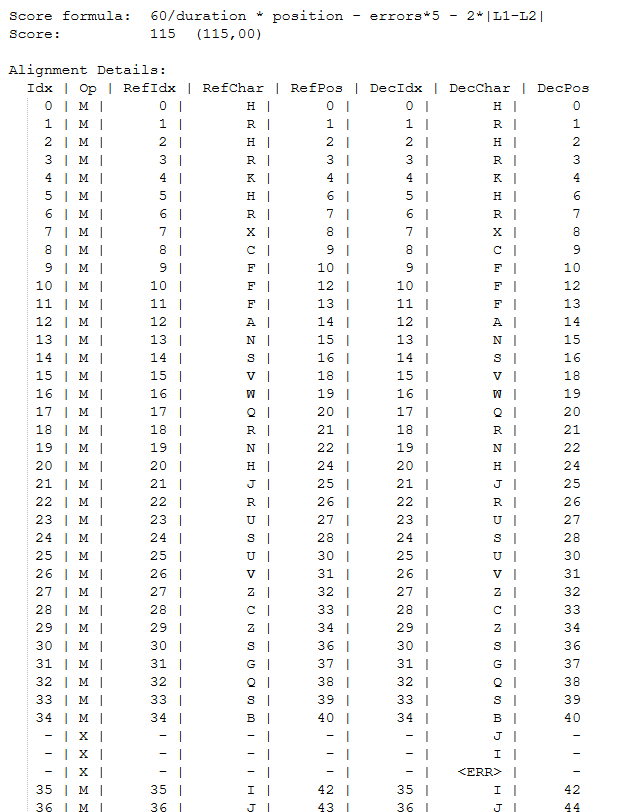
TX results (2) — detailed timing and element analysis
Generating Texts
Use Generate Texts to create randomised reference texts. Choose letter groups, numbers, mixed, or callsigns. Generated texts are saved when you close this window. PDF export is optional and lets you print reference sheets. Sequence numbers keep exported sets organised for structured practice events.
Importing a championship text
Choose Import text to supply a reference created by another program. If you have a photograph, first use your OCR tool or AI agent to transcribe it, then paste the resulting text into DTM.
- Select Letters, Figures or Mixed. Use for starts on the set Generate Texts is showing (Competition or Training); choose Training to replace the warm-up text. The button names the target: Use as competition or Use as training.
- Use Paste text or Open .txt file. Include only the groups, without headings or row numbers.
- Review and edit the text against your source. DTM shows group and character totals, marks invalid groups red and lists the problems. Select a problem to locate it. Every group must contain five characters; shorter complete texts are accepted. Lowercase becomes uppercase, and line breaks only separate groups — the text is saved as one line. A slashed zero (Ø, also as printed by Generate Texts) is read as 0. Otherwise DTM keeps O/0 and I/1 as entered and does not guess OCR corrections.
- Click Use as competition or Use as training to save and activate that category. Other texts remain available. Select the same category in TX; competition text appears after VVV=, START or straight-key READY.
Imports survive restarting DTM and do not require PDF export. Text replacement is locked while a TX attempt is ready or recording. Each attempt uses the reference it started with and includes it in the existing written output as an excerpt covering the transmitted area.
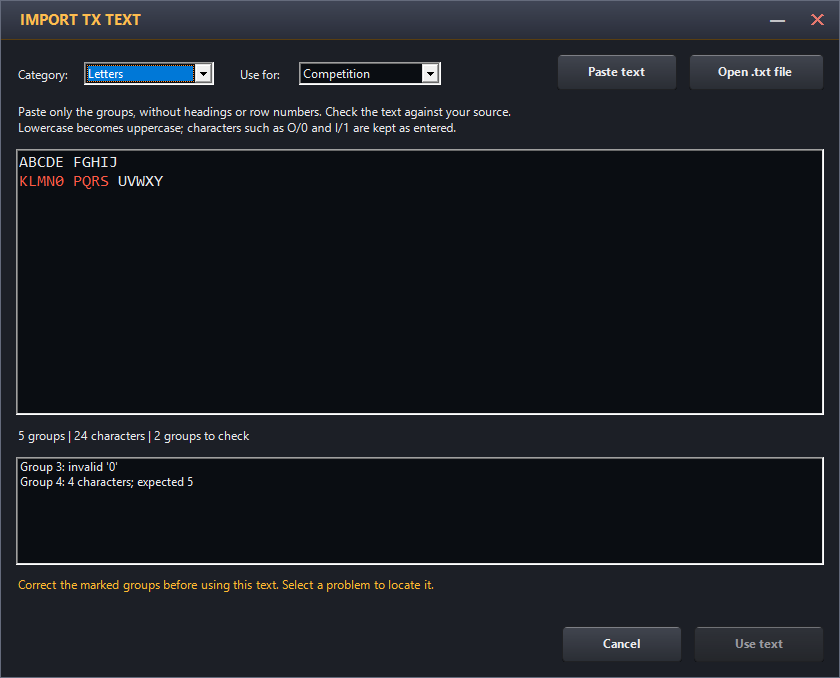
Import text — review OCR characters and group lengths before activation
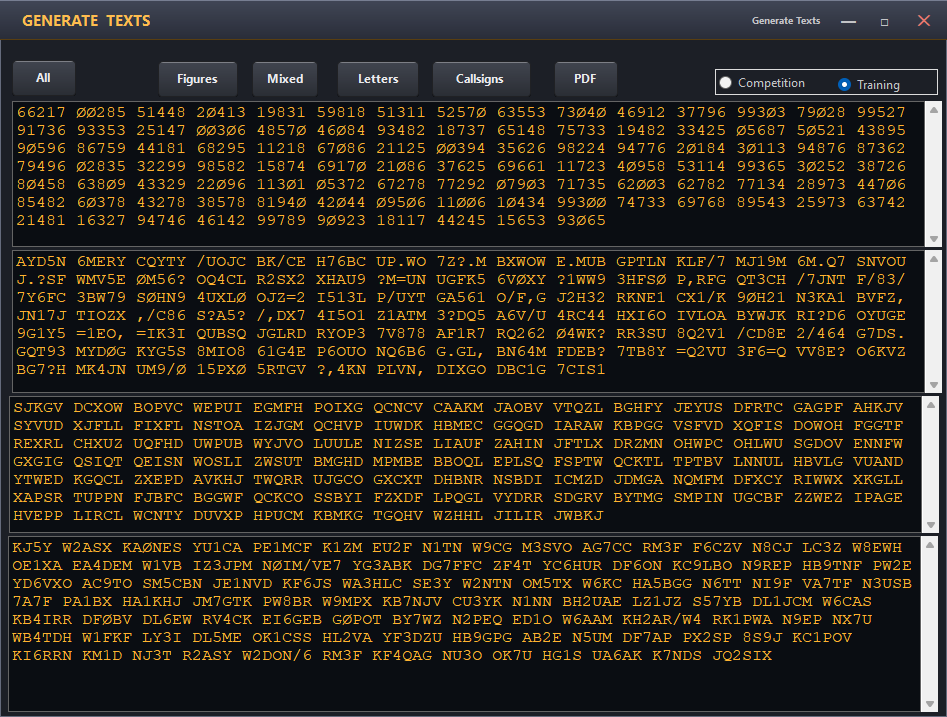
Generate Texts — randomised reference text sets ready for training and supervised events
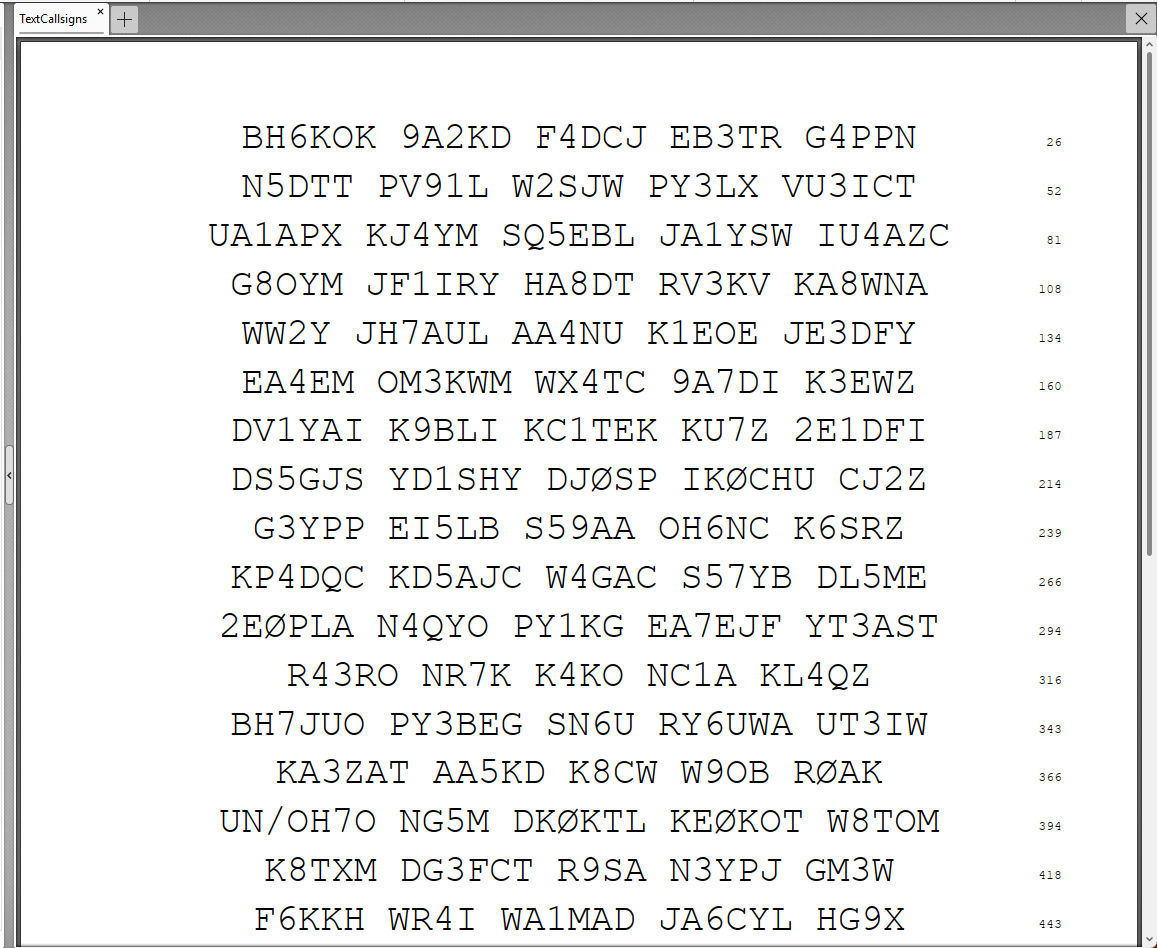
PDF export — printable reference sheets for training and supervised events
Quality RX
Quality RX is the transcription trainer: OpenShack sends a random CW text at the selected speed and tone, you type what you copy, and the app compares your answer with the reference. It is separate from the multiple-choice Listening Quiz below.
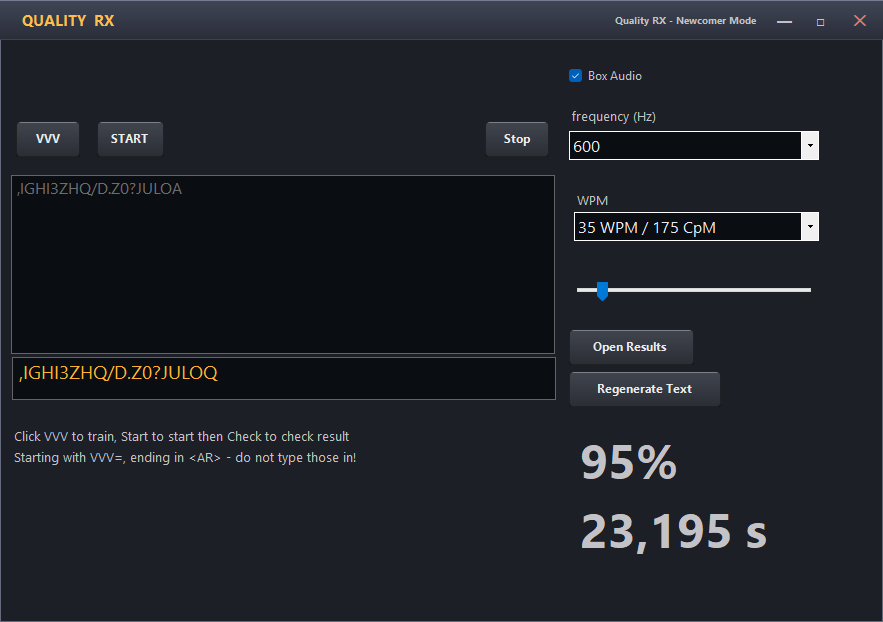
Quality RX — Newcomer mode showing the copied text, similarity score, and elapsed time
| Dashboard entry | Best for | Default text | Timing |
|---|---|---|---|
| Quality RX (Newcomer) | Building copy confidence | 100 characters | Characters at the selected WPM, with slower Farnsworth spacing |
| Quality RX (Competition) | Longer practice and formal events | 300 characters | Standard operating speed |
Controls
- Box Audio sends the exercise through a connected OpenShack Box. Clear it to use the PC audio output selected under Settings → Advanced. If the Box is unavailable, Quality RX falls back to PC audio.
- frequency (Hz) and WPM set the CW tone and character speed.
- The character-count slider changes the length of the scored text. Regenerate Text creates a fresh random reference at that length.
- VVV starts a short 20-character warm-up and reveals its reference text for immediate practice.
- START sends the full hidden reference. CHECK stops the timer and scores what you entered; Stop cancels playback without scoring the run.
- Open Results opens the saved RX result files. Standalone scored runs are also eligible for Personal Best.
Run a scored text
- Under RX on the dashboard, open Quality RX (Newcomer) or Quality RX (Competition).
- Select Box or PC audio, then choose the frequency, WPM, and text length. Regenerate the text if you want a fresh reference.
- Click START and type the characters you hear into the answer field.
- The transmission begins with VVV= and ends with <AR>; do not type either marker.
- Click CHECK when you are finished. Quality RX shows the similarity percentage and elapsed time and saves the result.
Why Quality RX is valuable for training
- Step-by-step progression — Newcomer timing gives you more space between characters before you move to standard spacing.
- Controlled practice variables — speed, tone, audio output, and text length are adjustable.
- Fast warm-ups — use VVV for a short copy check without committing to the full text.
- Measurable feedback — similarity and elapsed time make progress visible from run to run.
RX Groups — HST Five-Character Groups
RX Groups trains the receiving test of the IARU High Speed Telegraphy (HST) championships. OpenShack sends VVV =, then one minute of five-character groups — letters, figures or mixed — at the speed you choose, and after the minute AR. The minute starts with the first character of the groups and always lasts 60 seconds; the clock counts it from 0:00 to 1:00. You copy what you hear, and the app scores your copy the way the championship does. Every message is new.
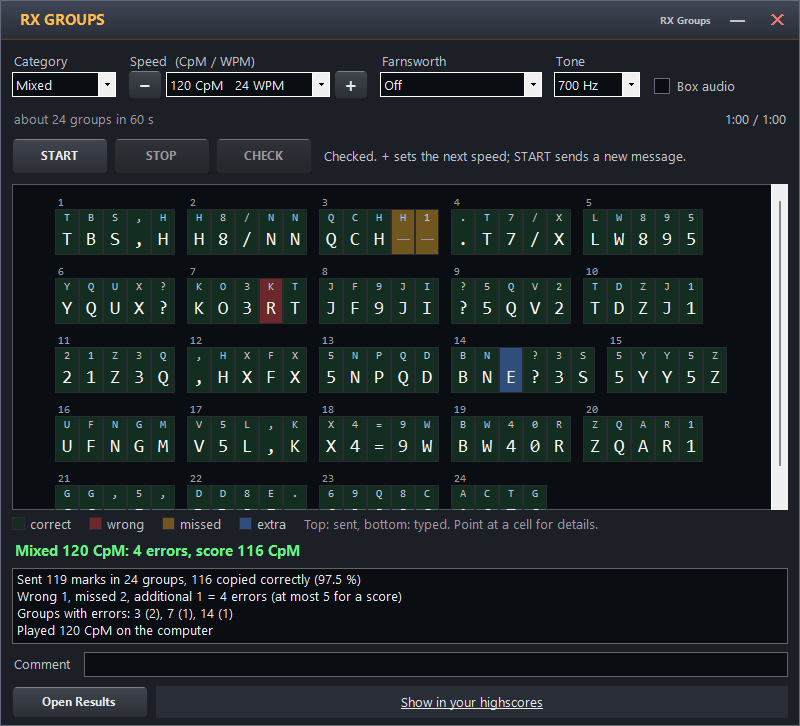
RX Groups — a checked run: every group shows what was sent above what you copied
Speed
HST counts the characters actually sent in one minute. RX Groups shows that speed in CpM (characters per minute) and in WPM = CpM ÷ 5: 100 CpM is 20 WPM in every category. − and + move 10 CpM (2 WPM), the HST step. At 100 CpM the minute holds about 20 groups; the last group can stop in the middle when the minute is up.
Controls
- Category — Letters (A–Z), Figures (0–9) or Mixed (letters, figures and
. , ? / =). - Speed with − and + — see above.
- Farnsworth — an effective speed in CpM: the characters keep the speed you chose, and the gaps between them grow until only that many characters fit into the minute. It only works below the speed. Farnsworth runs have their own high-score list.
- Tone — the CW pitch.
- Box audio — plays through a connected OpenShack Box (550–750 Hz). The Box can only key whole WPM steps, so the line under the speed shows the speed it really sends. Very high speeds are too fast for the Box. Without a Box the computer plays.
- START sends a new message. CHECK (or Ctrl+Enter) scores your copy once the minute is over. STOP ends the message early and checks your copy at once; whatever was not sent yet counts as missed, so a stopped run still counts as an attempt.
- Comment and Open Results work as in the TX Trainer: one result file per run, plus an overview of all runs.
Copying
The sheet keeps your copy in groups of five, five groups per line. Type along while the message plays, or write on paper first and type it in afterwards — there is no time limit before CHECK.
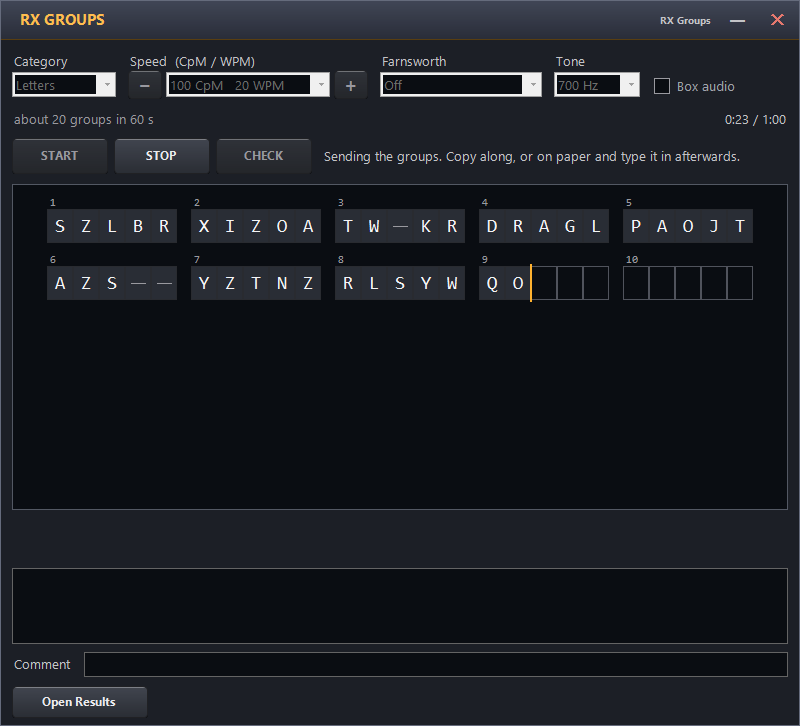
Copying: group 3 has a gap for a missed character, group 6 was ended early with Space
| Key | What it does |
|---|---|
Letters, figures, . , ? / = | Inserted at the cursor; everything after it moves on |
| Space | Ends the current group early: the rest stays as gaps, the next group starts |
_ or * | Inserts one gap for a character you did not catch |
| Backspace / Delete | Removes a character |
| Arrow keys, Home, End, mouse click | Move the cursor |
| Ctrl+Z | Undo |
| Ctrl+Enter | CHECK |
Scoring (IARU HST rules)
- Every wrong, missed or extra character is one error. Two characters swapped are two errors.
- A message counts with five errors or fewer.
- Score = speed − errors: 120 CpM with 3 errors scores 117.
- After CHECK every group shows the sent characters small above your copy: green correct, red wrong, amber missed, blue extra. The legend under the sheet repeats the colours. Point at a cell to see what was sent and what you typed, e.g. Group 7: sent R, you typed X (wrong).
Train for the championship
- Under RX on the dashboard, open RX Groups.
- Choose Letters and a speed you copy safely.
- Click START and copy. When you lose a character, press Space or
_so your groups stay in line. - Click CHECK. With five errors or fewer, press + and START for the next speed.
- Go on with Figures, then Mixed — the order of the championship.
Listening Quiz
The Listening Quiz plays a Morse text at a given speed and then presents four multiple-choice answers. Listen carefully, then pick the correct option (A/B/C/D). Questions are loaded from CSV files so you can easily add your own question sets.
Two modes are available: Training (standalone practice with selectable speed) and a licensed event mode (supervised event with progressive speed stages managed by the Competition Mode/FormCompetition orchestrator).
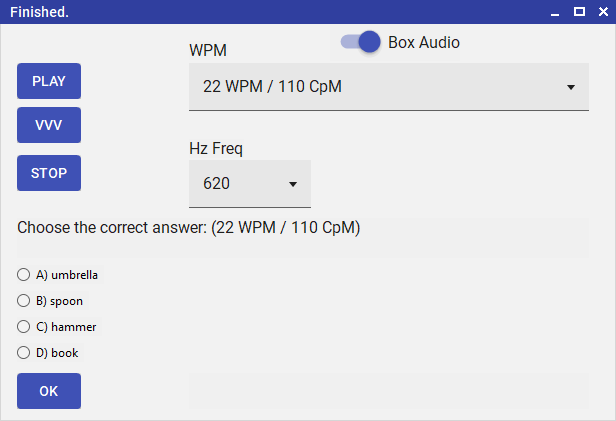
Listening Quiz — select speed, listen to the Morse text, then choose the correct answer
Audio Output
PC Audio
CW tones generated on your PC. Playback timing is inherently precise — the form knows exactly when audio finishes. Routes to the global PC audio output device.
Box Audio (default)
CW played through the OpenShack Box hardware sidetone. The app estimates the playback duration and shows the answer options when the sound is expected to finish.
How to Use — Training Mode
- From the dashboard, open Listening Quiz (training texts) or the licensed event variant.
- Select a speed from the dropdown (WPM). The app picks the matching question from the CSV.
- Optionally adjust the sidetone frequency.
- Click PLAY. The Morse text is sent with a "VVV=" preamble and "+" (AR) suffix.
- After playback finishes, the four answer options appear. Select one and click OK.
- The result (Correct / Wrong) is shown. The speed automatically advances by 2 WPM for the next round.
How to Use — Licensed Event Mode
- The Competition Mode/FormCompetition orchestrator opens the Listening Quiz with a competitor callsign.
- Questions are served in ascending CpM order. Each speed stage allows exactly one playback and one answer.
- Click START to play the current stage. After playback, select A/B/C/D and click OK.
- Click READY to advance to the next speed stage.
- Two consecutive wrong answers trigger a "must be correct" warning. The next wrong answer ends the run.
VVV Preview
Click the VVV button at any time to play a short "VVV" sample at the currently selected speed. This lets you verify audio output and volume before starting the actual quiz.
CSV Question Files
Questions are defined in semicolon-delimited CSV files (UTF-8 encoding). OpenShack ships with two sample files:
- Listening.csv — the licensed event question set
- ListeningTraining.csv — a separate training question set
Both files cover speeds from 100 CpM (20 WPM) to 490 CpM (98 WPM) in steps of 10 CpM, with one question per speed level.
CSV Format
The first row is a header and is skipped. Each subsequent row defines one question:
| Column | Name | Description |
|---|---|---|
| 1 | Text | The sentence played as Morse code. Should end mid-sentence — the correct answer completes it. |
| 2 | Speed | Speed in CpM (Characters per Minute). The app converts to WPM internally (WPM = CpM ÷ 5). |
| 3 | Question | Optional question prompt shown above the answers. Leave empty to use the default prompt. |
| 4 | Answer1 | Answer option A |
| 5 | Answer2 | Answer option B |
| 6 | Answer3 | Answer option C |
| 7 | Answer4 | Answer option D |
| 8 | CorrectOption | Number 1–4 indicating which answer is correct (1 = A, 2 = B, 3 = C, 4 = D) |
On a very clear and sunny day during the summer, the color of the sky is usually;100;;red;blue;yellow;black;2
This plays "On a very clear and sunny day…" at 100 CpM (20 WPM). The correct answer is B) blue (option 2).
File Locations
On first launch, the sample CSV files are automatically copied into your local data folder:
%LOCALAPPDATA%\OpenShack\Listening\
If you want to use your own questions, place your CSV file in this folder (or in the
application directory under Resources\Texts\). The app searches for files
in the following order:
- Application directory (same folder as the
.exe) Resourcen\,Resources\, orResources\Texts\subdirectories- Local AppData folder (the copy created at first launch)
To customise the licensed event questions, edit or replace
Listening.csv in the AppData folder. To customise the training set, edit
ListeningTraining.csv. The header row must be preserved. Rows with a
CpM value ≤ 0 or a CorrectOption outside 1–4 are silently skipped.
. , ? / = +). German umlauts (ä, ö, ü, ß) are automatically
converted to their two-letter equivalents (ae, oe, ue, ss). Characters not representable
in Morse are replaced with spaces.
Personal Best — Your High Scores
OpenShack automatically keeps your best standalone training results across all Master modes. Open High Scores → Leaderboard from the dashboard to review your local records, publish selected competition runs, or compare them with the OpenShack world leaderboard.
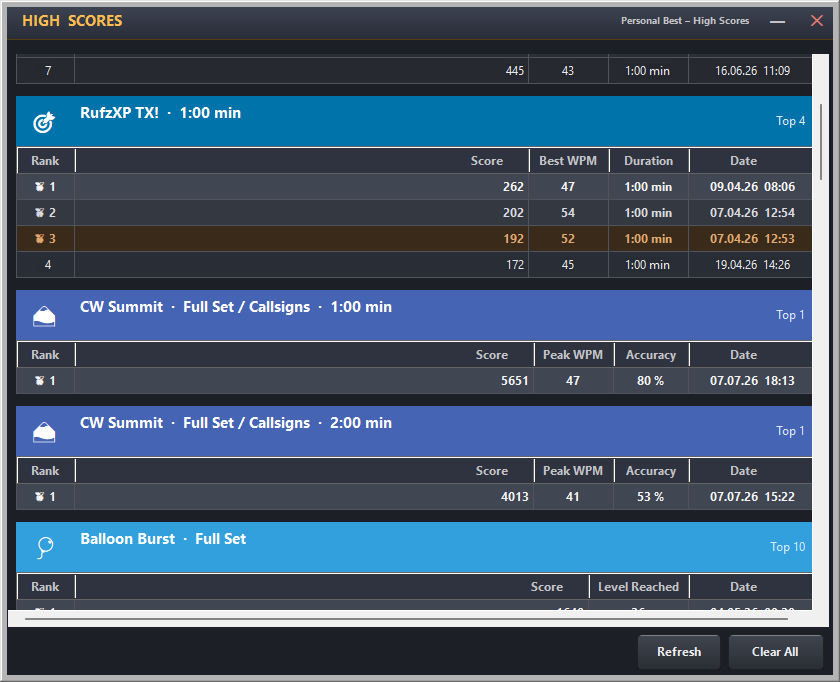
My Scores — category cards with your local top 10, publication status, and individual deletion
What Is Tracked
My Scores lists the competitions alphabetically, then the RX Listening, RX Groups and TX results, in the order of this table.
| Mode | Score | Grouped By |
|---|---|---|
| Balloon Burst | Score + highest level | Show/Paddle or Listen/Keyboard + Characters, Callsigns, or Char Group 2–5 + character set + bursts per level (Listen also starting speed and WPM ramp) |
| CW Summit | Score + peak WPM + accuracy | Input method + target source + character set + duration + speed rules (step up/down, Farnsworth) |
| DX Arena (Competition) | Correctly logged QSOs + logged QSOs + contest points + average WPM | Contest (WAG: German / non-German station) + duration + Paddle/Keyboard |
| Pile-Up | Points + copied callsigns | Duration + simultaneous calls + base WPM |
| RufzXP Classic | Final score | Session duration |
| RufzXP TX! | Final score | Session duration |
| RX Listening | Similarity % | Character count + WPM + Farnsworth + Newcomer/Standard |
| RX Groups | Speed − errors (CpM) + speed + errors | Category (Letters/Figures/Mixed) + Farnsworth; only runs with five errors or fewer |
| TX | Calculated accuracy score | Category (Letters/Mixed/Figures/Callsigns) + duration |
My Scores
In the desktop summaries for CW Summit, Balloon Burst, RufzXP Classic/TX and Pile-Up, click Show Leaderboard or Publish Score to open that exact result. TX and RX Listening use Show in your highscores for their local records. A first positive result or a score above your previous best with the same settings also shows New highscore!; an equal score does not. TX compares category and duration; RX compares character count, playback speed, Farnsworth and Newcomer/Standard mode.
The MY SCORES tab groups comparable runs into separate cards. Each card shows the settings that define that category and keeps its ten best results. When a completed run opens Personal Best, OpenShack scrolls directly to the new entry and highlights that row.
The summary link also shows a result below the saved top ten as THIS RUN, alongside the retained records. Publishing a result keeps the list at its current scroll position.
Settings that make a run easier or harder always create their own card, so a run at your own pace never pushes a standard run out of the list. In Balloon Burst that is BURSTS / LEVEL plus the Listen starting speed and WPM ramp, in CW Summit the speed steps and Farnsworth. The card with the standard settings — the ones the world leaderboard uses — is always shown first.
- Automatic recording — standalone results are saved locally at the end of the run. Nothing is published automatically.
- Top 10 per category — each comparable mode/settings combination keeps only its ten best results.
- Medal ranking — 🥇 🥈 🥉 identify the top three entries within each category.
- Copy a table — select one or more rows, right-click and choose Copy selected rows. Choose Copy complete scores to copy every entry in that category. The clipboard contains plain text and an HTML table, so the receiving program can use the format it supports.
- Delete one local result — click DELETE on its row. Legacy scores from older OpenShack versions are upgraded automatically so they can also be deleted individually.
- Supervised events excluded — licensed Competition Mode sessions are managed by the event workflow and are not added to Personal Best.
Publishing and World Scores
Publication is always your choice. A leaderboard-compatible local row shows a PUBLISH button in the World column. Click it to send that run under the active competition callsign. The row then shows an UNPUBLISH button; use it to remove your published result from the world leaderboard again — the local row stays. LOCAL ONLY means that the run is still kept in Personal Best but its settings or legacy data do not qualify for the public board.
Runs played with your own rules — for example Balloon Burst with 50 balloons per level — show a cyan PUBLISH OPEN button instead. They go to the competition's Open Class board: a single open list per competition where every entry displays the settings it was played with. Open Class scores are not directly comparable and never count toward the class championships, and they are only ever published by hand — automatic publishing covers the regular classes only. The front panel says OPEN CLASS for such a setup; PERSONAL BEST ONLY now appears only when the character set is incomplete (for example a Koch lesson set).
DX Arena Competition runs have no Open Class: a run in one of the 30 DX Arena classes shows PUBLISH; DX Arena rows from before these classes existed stay LOCAL ONLY. DX Arena asks after every Competition run, with an editable leaderboard callsign, PUBLISH and CANCEL. Valid callsign edits are remembered even on Cancel. Its own dialog also handles retries and works without a CW Suite licence; the Arena's Publish run link reopens it without requiring this leaderboard view. Your automatic-publishing preference for other games remains unchanged.
Select WORLD SCORES to load the published snapshot. The view opens with All competitions and Latest activity · newest first. This shows up to 25 recently active operators across all competitions. Each callsign appears once, with the competitions entered and the time of its latest published run. Select a competition to narrow the dashboard. Choose a category or All settings · ranked for the personal-best rankings; each category is ranked independently and shows its best 25 operators. The website also opens on this combined activity dashboard. Opening Personal Best itself does not contact the score service; the public snapshot is downloaded only when you open World Scores or refresh it.
Operator and Removal Key
Click OPERATOR & KEY at the bottom of Personal Best to select the callsign used for the next publication and manage its removal key. The callsign is shared by all competitions and remembered for future runs, but you can change it before any submission. Each callsign keeps its own key.
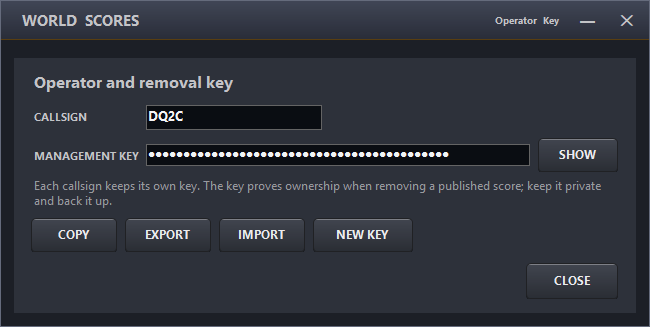
Operator & Key — reveal, copy, export, import, or rotate the key for the selected callsign
- SHOW reveals the masked key; COPY places it on the clipboard.
- EXPORT saves a private backup file. IMPORT restores one for the selected callsign.
- NEW KEY securely replaces the key and updates the published scores OpenShack still knows about.
Licensed Competition Mode — Supervised Events
Licensed Competition Mode is OpenShack's orchestration layer for the rare case of on-site events with multiple competitors. An operator manages the event from a single window — registering competitors, launching sub-forms in sequence, and collecting all results into a unified scoreboard that auto-saves and uploads.
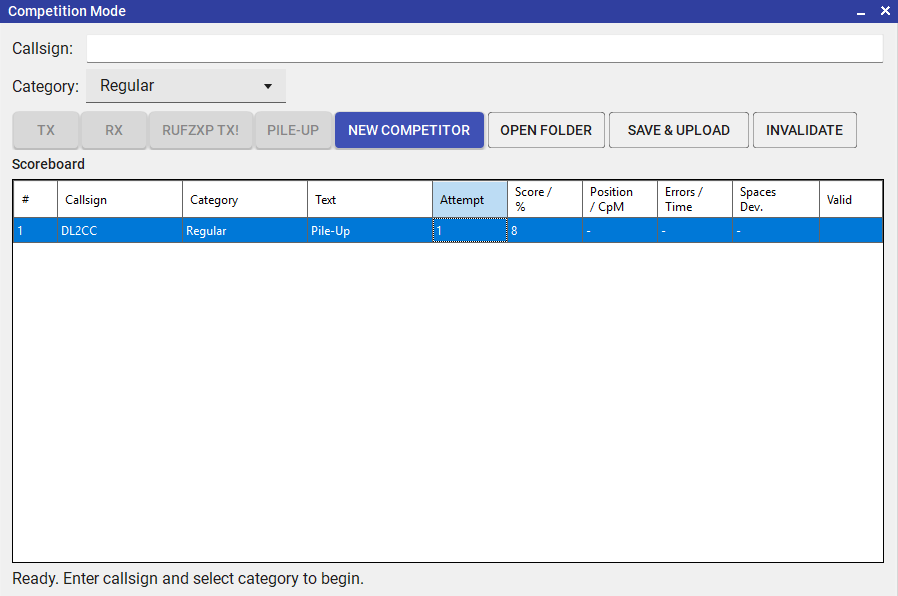
Licensed Competition Mode — orchestrator window with scoreboard and competitor management
Choose Which Disciplines Count
In Settings → Settings → Competition you decide which disciplines are part of your supervised event. Tick or untick TX, Quality RX, Listening, RufzXP TX! and Pile-Up — any discipline you switch off is simply hidden in the Competition/FormCompetition window, so operators only see the ones you are actually running.
The same tab has an Enable Newcomer category switch. Leave it off for a single-class event — the Newcomer option then disappears everywhere and every competitor is a regular entrant. Turn it on to score Newcomers separately from regular competitors.
Max attempts per discipline sets how many scored attempts each competitor gets in every discipline (the default is 2; for TX it counts per text category). Once a competitor has used all their attempts in a discipline, further runs are no longer recorded. If you invalidate one of their attempts on the scoreboard, that slot frees up so they can run it again — and the attempt number shown in the scoreboard never climbs higher than the maximum you set here.
The Pile-Up event settings (duration, simultaneous callsigns, repetitions, and base speed) are also set here, so every competitor runs the same Pile-Up. During a supervised event these values are fixed — they cannot be changed in the Pile-Up window.
Event Workflow
- With the Competition licence active, open Competition/FormCompetition from the dashboard.
- Enter the competitor's callsign. If the Newcomer category is enabled, also pick their category (Regular or Newcomer).
- Open one of the enabled sub-forms (TX, Quality RX, Listening, RufzXP, or Pile-Up). Only one can be open at a time.
- The competitor performs their attempt. Results are automatically collected when they finish.
- The result appears instantly in the scoreboard. JSON + CSV files are saved and uploaded.
- Click New Competitor to clear the form for the next participant.
- Click Standings at any time to see a ranked results board per discipline.
Scoreboard & Data
- Live scoreboard — updates after every attempt. Shows callsign, category, and all attempt results.
- Invalidate / Validate — select a row and use the Invalidate button to discard a bad run (a false start, interference, etc.). Invalidated attempts are greyed out and ignored in the standings, and they free up an attempt slot. If the competitor's discipline window is still open, that freed attempt is re-enabled there straight away — in RufzXP just press Restart — so they can run it again without reopening anything. The same button validates a row again if you change your mind.
- Standings — the Standings button opens a ranked board showing, for each discipline, every competitor's callsign and best result, with 🥇 🥈 🥉 medals for the top three. Regular and Newcomer competitors are ranked separately. You can leave this window open — it refreshes automatically after every attempt.
- Auto-save — results are written to JSON and CSV automatically after each attempt. No data is lost even if OpenShack crashes.
- Cloud upload — results are uploaded to the competition server so remote officials can view the live scoreboard.
- Multi-day support — sessions spanning up to 5 days are handled. Each workstation gets a unique file name so multi-PC setups don't collide.
- Manual Save & Upload button for on-demand synchronisation.
- Open Folder button to access raw result files directly in Windows Explorer.